eSIM for Digital Nomads: What Actually Matters
Choosing an esim for digital nomads? Learn what matters most - coverage, speed caps, hotspot rules, setup, and avoiding fake unlimited plans.
There’s nothing worse than getting home from a brilliant holiday only to be hit with a massive phone bill. That post-trip bill shock is a real travel nightmare, and it often comes down to one simple oversight: forgetting to turn off data roaming on your iPhone.
Taking just a few seconds to tweak your settings before you fly is genuinely the smartest travel prep you can do.
Forgetting to manage your mobile settings before you travel is one of the easiest ways to put a damper on your trip. It’s not just about making calls or browsing the web; your iPhone is a busy device, constantly working in the background.
Things like background app refreshes, automatic iCloud photo uploads, and even location services can quietly chew through expensive roaming data. I’ve heard stories of people on a train in Europe who cross a border, and their phone instantly latches onto a partner network with punishing daily rates. It happens far more often than you’d think.
This diagram shows exactly how those unexpected costs can pile up.
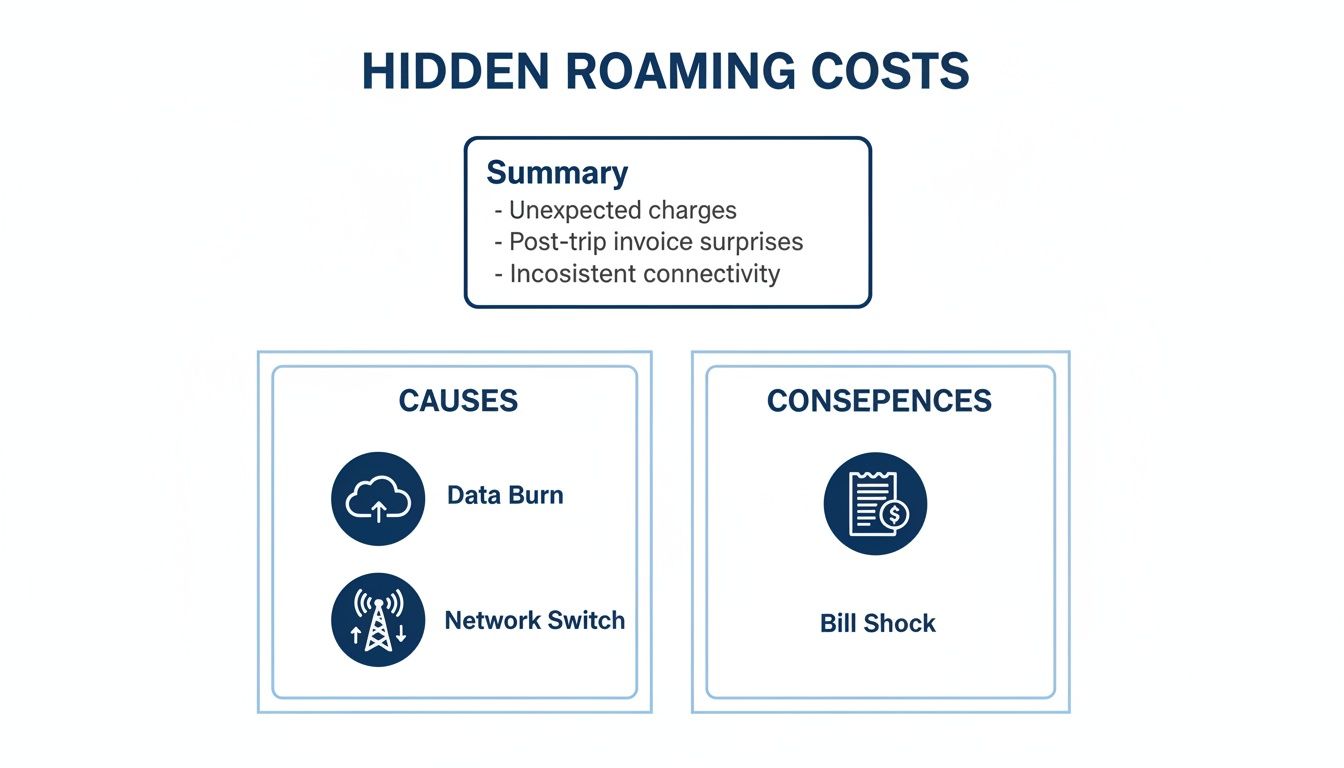
From your phone automatically switching networks to apps gobbling up data when you’re not even looking, every little thing contributes to that eye-watering bill when you get home.
Here’s a simple breakdown of what happens when you travel with data roaming enabled versus disabled on your iPhone.
| Scenario | Data Roaming ON | Data Roaming OFF |
|---|---|---|
| Connection | Your iPhone automatically connects to a local partner network for data services abroad. | Your iPhone will not use cellular data for internet, email, or apps. You’ll rely on Wi-Fi instead. |
| Costs | You’ll be charged your carrier’s international roaming rates, which can be very high per MB or as a daily fee. | No data roaming charges. Your mobile bill remains predictable. |
| Functionality | Full internet access on the go, but at a significant cost. Background data usage is a major risk. | Internet-based apps and services only work when you’re connected to a Wi-Fi network. |
Ultimately, toggling that one switch gives you complete control over your spending.
Roaming fees have become a major issue for travelers again, as many mobile carriers have reintroduced daily charges they had previously scrapped. For travelers from the UK, this has been a particularly sharp, unwelcome change.
Many major UK operators reintroduced paid roaming in 2024–2025, with daily rates from providers like EE (£2.29) and Vodafone (up to £6 a day) for certain destinations. This shift explains why so many travelers now make a point of turning off roaming on their iPhones before they even leave for the airport.
By understanding the ‘why’ behind the charges, you can see why adjusting your settings is crucial. It’s a simple action that offers complete peace of mind, ensuring your budget is spent on your trip, not on avoidable mobile fees.
Even the daily travel passes offered by networks often come with confusing fine print. You can see a full analysis in our guide to the hidden costs of international day passes. At the end of the day, taking direct control of your iPhone’s settings is the only truly reliable way to prevent bill shock.
Taking control of your mobile data when you’re abroad is the single best way to guarantee a stress-free trip. It literally takes less than a minute to disable data roaming on your iPhone, and it’s a crucial step to avoid the kind of bill shock that can sour the memories of a fantastic holiday.

The good news is, the process is incredibly straightforward. Once you know where to look, it’s just a few quick taps away.
Let’s walk through the exact steps to get this sorted. The path is nearly identical across recent iOS versions, though one menu item might have a slightly different name depending on where you are in the world.
And that’s all there is to it. Your iPhone is now blocked from using foreign mobile networks for data.
This is a common point of confusion, but it’s vital to get it right. Turning off data roaming is not the same as turning off your mobile data completely.
Think of it like this:
When you’re traveling, your goal is almost always to just turn off data roaming. This single action prevents those eye-watering international charges but leaves everything else ready for when you return. It also means you can still hop onto Wi-Fi at your hotel, a café, or the airport without any fuss.
It’s a classic travel mistake. You diligently turn off data roaming, thinking you’ve dodged a massive bill. But that only solves half the problem. That single tap stops your iPhone from using expensive foreign mobile data, but it does absolutely nothing for old-school calls and texts.
Your home network provider will still happily bill you for every call you make or receive and every SMS you send. And the rates are often eye-watering. It’s a critical distinction to grasp if you want to protect your entire mobile bill, not just the data part.
Picture this: you’re wandering through the streets of Barcelona when an urgent call comes in from back home. Even with data roaming off, your phone will ring. The catch? It could cost you several dollars a minute just to answer it.
This is exactly where so many travelers get caught out. They’ve done the right thing by disabling data but have no idea their standard phone service is still active and racking up charges in the background.
Here’s a quick look at what’s still costing you money:
The crucial thing to remember is that the Data Roaming toggle in your settings only affects mobile data. Your voice and SMS services are a completely separate beast and a huge source of potential charges.
Once you realize this, you can start making smarter choices. You might decide to rely solely on Wi-Fi calling apps like WhatsApp or FaceTime. Or, even better, you could install a travel eSIM from a provider like TapSim for affordable local data, giving you a way to stay connected on your own terms without any surprise fees.
We’ve all heard horror stories of travelers returning home to a mobile bill worth more than their flights. Even if you think you’ve got everything covered, a few sneaky iPhone settings can easily catch you out.
One of the biggest culprits? Wi-Fi Assist. It’s a handy feature back home, designed to seamlessly switch you over to mobile data whenever your Wi-Fi signal gets a bit flaky. But when you’re abroad, that weak hotel or café Wi-Fi could cause your phone to start chomping through expensive roaming data in the background, without you even noticing.
Another classic pitfall is what I like to call the ‘border hop’. You might be on a scenic train ride through Europe, or even just driving near a national border. Your iPhone, ever the helpful device, will automatically hunt for the strongest signal. The problem is, it might latch onto a network from a neighbouring country, instantly kicking in roaming charges, even if it’s only for a few minutes.
While you can stop this by manually selecting your network in your iPhone’s settings, it’s a step that’s incredibly easy to forget when you’re caught up in your travels.
The thing is, our smartphones are built to be online all the time. In the UK, where mobile internet penetration is over 90%, this constant connection is just normal life. That’s why so many UK travel guides stress the importance of knowing how to roaming iphone turn off to stop background data drains from things like automatic app updates or iCloud backups. You can read more about UK mobile internet usage trends on Statista.
A quick pre-trip check of these settings can genuinely save you a massive headache. Just taking a moment to find and disable Wi-Fi Assist before you even leave the country is one of the smartest travel preps you can do.
Okay, so you’ve successfully turned off data roaming on your iPhone and dodged those nasty surprise bills. Brilliant. But now what? You can’t spend your entire trip hunting for a decent café with free Wi-Fi, and buying a local SIM card the moment you land is often a real faff.
Thankfully, there’s a much simpler solution that has completely changed how travelers stay connected abroad: the travel eSIM.
An eSIM is a digital version of the physical SIM card you’re used to, but it’s built right into your iPhone. This means you can download a data plan for your destination before you even pack your bags, and activate it the second you arrive. No more fiddling with tiny plastic cards and paperclips.
Picture this: you’re flying to Italy. Before you leave, you buy an Italian data plan online. When the plane lands in Rome, you just go into your settings, switch to your new eSIM, and you’re instantly connected. No queues, no trying to explain what you need in broken Italian, and absolutely no hidden costs.
This is exactly what services like TapSim offer. You get affordable, high-speed data for your maps, WhatsApp, and social media, while your main SIM can still receive calls and texts from home if you need it to. It’s seamless, and it’s how travel connectivity should be.
Of course, there are other ways to get online, but they all come with drawbacks that an eSIM just doesn’t have.
With roaming charges making a comeback for many networks, finding good value is more important than ever. In fact, most experts agree that using an eSIM can slash your travel data costs by a massive 50–70% compared to standard roaming rates. It’s why you’ll see consumer advice sites everywhere telling people to disable roaming and grab an eSIM instead. You can read more about how UK travellers are beating roaming charges over on BetaNews.
Ultimately, switching to an eSIM isn’t just about saving money. It’s about gaining convenience, security, and peace of mind. You can spend less time stressing about finding a connection and more time actually enjoying your trip.
If you’re planning a holiday, it’s well worth looking into. We’ve put together a full breakdown of the best eSIM for travel to help you figure out the perfect option for your next adventure.
Getting your travel documents and packing your bags are top of the list before any trip, but a few minutes spent tweaking your iPhone settings can save you a world of hassle—and a ton of money. I’ve learned this the hard way over the years.
Think of it as your digital pre-flight check. Running through these simple steps before you head to the airport will mean you can land, get your bearings, and connect without worrying about a monster bill waiting for you back home.
Before you even think about leaving, a few taps in your settings can make all the difference.
Once your phone is secure, it’s time to think about how you’ll actually get online at your destination.
Run through this quick checklist before you travel to guarantee a trip without unexpected mobile charges.
| Task | Status | Why It Matters |
|---|---|---|
| Check home provider roaming rates | ☐ | Prevents you from accidentally using an expensive daily plan. |
| Turn off Data Roaming | ☐ | The single most important step to block unwanted data charges. |
| Disable Wi-Fi Assist | ☐ | Stops your iPhone from secretly using mobile data on weak Wi-Fi. |
| Install your travel eSIM | ☐ | Ensures you have affordable data ready the moment you land. |
Ticking these boxes takes less than five minutes, but it’s the foundation for a stress-free, connected trip.
Traveling can throw up a lot of questions about phone settings. Let’s clear up some of the most common ones about managing your iPhone’s roaming so you can travel without any nasty surprises.
Yes, absolutely. Switching off data roaming only stops your iPhone from connecting to foreign cellular data networks. It has zero effect on its ability to connect to Wi-Fi.
So go ahead and connect to the free Wi-Fi at your hotel, a local café, or the airport. It’s one of the best ways to stay online for free while you’re away.
It will. Disabling data roaming doesn’t block standard voice calls or SMS texts. You’ll still be able to make and receive them just like you would at home.
Just be careful here. Your mobile provider will almost certainly charge you separate (and often very steep) international rates for every call and text. It’s always a good idea to check those rates before you fly.
Wi-Fi Assist is a clever iPhone feature that automatically switches you over to mobile data if it thinks your Wi-Fi signal is weak. While that’s handy at home, it can be a real budget-killer abroad.
To avoid it burning through expensive roaming data without you even realizing, I highly recommend switching it off before you travel. You’ll find the toggle for it in Settings > Mobile Data – just scroll right to the bottom of the screen.
For a simple, affordable way to get online in over 150 countries without the roaming stress, check out the travel eSIMs from TapSim at TapSim.net.