Can I use iMessage with a data-only eSIM? A Traveler’s Guide
Share:
Good news for travelers: yes, you absolutely can use iMessage with a data-only eSIM. In fact, it’s one of the smartest ways to keep in touch with friends and family back home without getting hit with eye-watering roaming charges.
iMessage is an internet-based service, so all it really needs is a data connection. It doesn’t rely on your traditional mobile network’s SMS service, which is what makes it so flexible for globetrotters.
How Does iMessage Actually Work on a Data-Only Connection?
Think of iMessage less like a text message and more like a message you’d send on WhatsApp or Telegram. When you send a message to another Apple user, your iPhone looks for an active internet connection—whether that’s Wi-Fi or mobile data—not a text messaging plan. This is a game-changer for anyone traveling abroad.
It means you can sidestep your home carrier’s expensive international plans altogether. Instead of paying a fortune for a few texts, you can simply activate an affordable, data-only travel eSIM from a provider like TapSim and use its data for all your messaging.
This approach is becoming more popular as eSIMs take off globally. The growth is fueled by widespread smartphone use and the rollout of 5G, making data-only eSIMs the perfect partner for iMessage on the go.
With a data-only plan, you can:
Get connected instantly: Activate your data plan right after you land, or even before you take off.
Dodge roaming fees: All your iMessage chats—photos, videos, and all—will use the prepaid data from your eSIM, not your home plan.
Keep your original number: With a few simple tweaks in your settings, you can keep your primary phone number linked to iMessage. This means your contacts see messages coming from you, not a random email address.
iMessage Functionality With Different Connections
To make it even clearer, here’s a quick comparison of how iMessage behaves with a data-only eSIM versus a traditional SIM card that includes voice and SMS.
Feature
Data-Only eSIM (e.g., TapSim)
Traditional SIM with Voice/Data
Sending/Receiving
Works flawlessly over the eSIM’s mobile data or Wi-Fi.
Works over mobile data, Wi-Fi, and can fall back to SMS (green bubbles).
Phone Number Linking
Yes, you can keep your primary number active for iMessage.
Your number is automatically linked to iMessage upon activation.
Cost Abroad
Pay only for the prepaid data bundle. No surprise roaming fees.
Can lead to very high roaming charges for data and SMS.
SMS/MMS Fallback
No. Messages to non-Apple users will fail as there’s no SMS plan.
Yes. Messages to non-Apple users are sent as standard SMS/MMS.
As you can see, the main difference lies in what happens when you try to message someone who doesn’t have an iPhone. With a data-only eSIM, you’ll need another app like WhatsApp for that. But for keeping in touch with fellow Apple users, it’s a seamless and incredibly cost-effective solution.
Getting to Grips with How iMessage Works
To really see why a data-only eSIM is a game-changer for travelers, it helps to pull back the curtain on how iMessage actually works. You’ve no doubt seen the blue and green text bubbles on your iPhone, but understanding what they mean is the key to dodging roaming charges abroad.
At its heart, iMessage is Apple’s own internet messaging service. It doesn’t rely on the old-school SMS network that your mobile provider manages. Instead, it behaves a lot like WhatsApp or Telegram, sending your messages over any internet connection it can find—be it Wi-Fi or mobile data.
This distinction is precisely what makes it so brilliant for anyone traveling.
iMessage vs. SMS: The Difference That Matters Abroad
Here’s a straightforward way to think about those colors and what they mean for your travel budget:
Blue Bubbles (iMessage): These messages are sent securely over the internet. They have nothing to do with your mobile provider’s texting plan and use a tiny bit of your data allowance instead.
Green Bubbles (SMS/MMS): This is the traditional text message. It needs a mobile plan with calling and texting included, and sending one of these from another country can lead to some nasty roaming fees.
When you install a data-only eSIM like TapSim, you’re simply giving your iPhone a local internet connection. That’s all iMessage needs to keep those blue bubbles flowing, letting you send and receive as many messages as you like.
The whole system works flawlessly because iMessage is built to use data for its secure, end-to-end encrypted chats, completely sidestepping the need for a voice or SMS plan. This clever setup is a big reason why eSIMs have become so popular, especially in travel hubs across Europe and Asia. It’s a win-win: better security for iMessage’s many users and ditching the hassle of physical SIM cards.
The brilliant thing is, your iMessage account is linked to your Apple ID and your phone number. So, as long as you’ve got an internet connection from your travel eSIM, you’re still reachable by everyone in the Apple world, just as if you were back home.
Getting Your iPhone Ready for iMessage Abroad
To make sure your messaging works perfectly on your trip, it’s wise to spend a few minutes on a quick pre-flight check of your iPhone settings. This is all about ensuring your iMessage continues to work with your normal home number, while all data is channeled through your much cheaper travel eSIM.
First, you’ll need to get your travel eSIM installed and activated. With TapSim, it’s a quick and simple process you can do right from your phone. Once that’s done, it’s time to dive into your settings.
Lock in Your iMessage Settings
Before you even think about packing, it’s a smart move to check that iMessage is definitely set up to use your primary number. This is the secret to making sure your friends and family see messages coming from you, not a random email address.
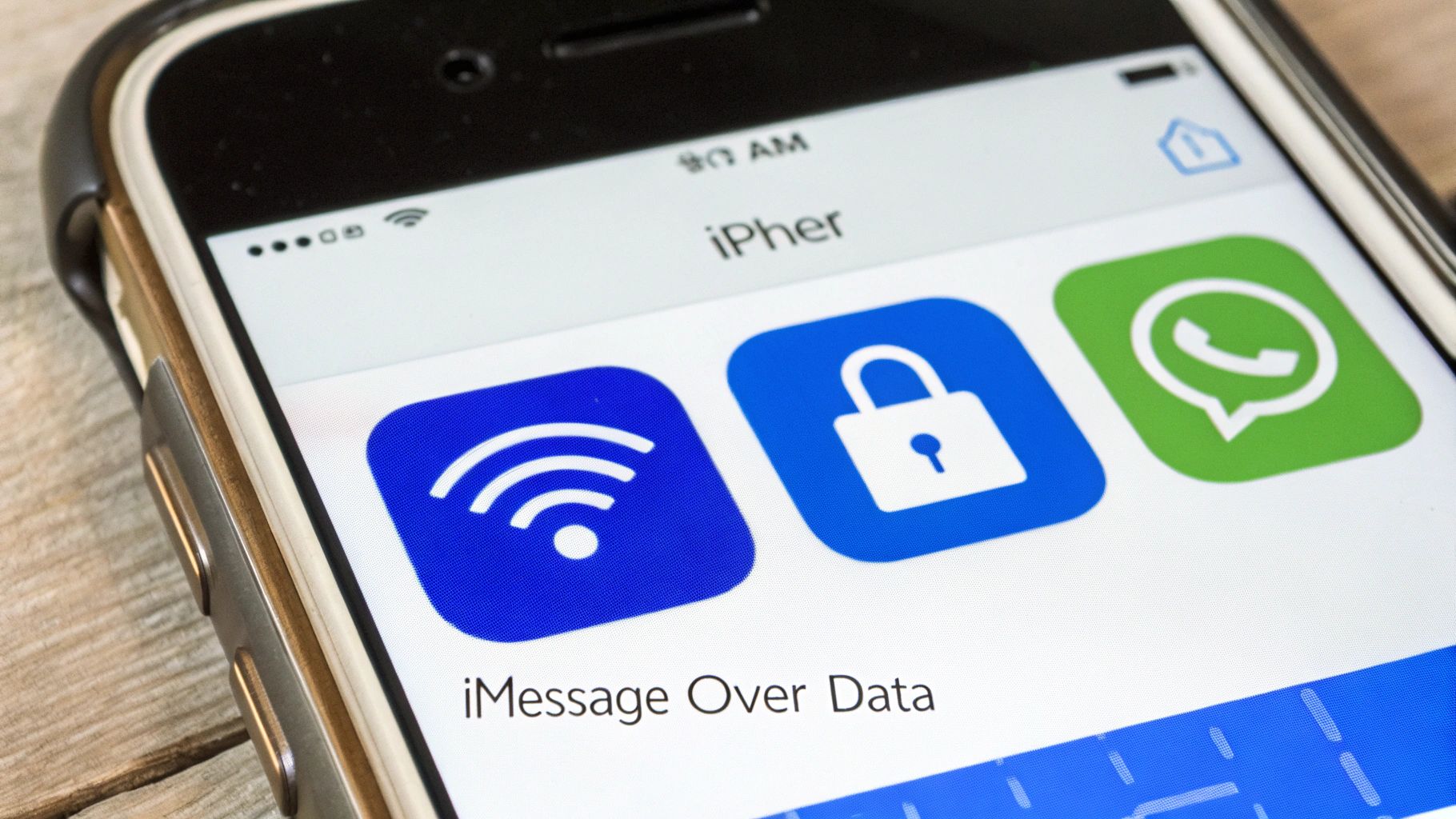
This screenshot shows the ‘Messages’ settings screen where you can manage iMessage.
The most important bit here is the ‘Send & Receive’ option. This is where you tell your iPhone which number or email to start conversations from.
Here’s how to double-check it:
Head to Settings > Messages.
Make sure the iMessage toggle at the top is green (switched on).
Tap on Send & Receive.
Look under the “Start New Conversations From” section. You want to see a checkmark right next to your primary phone number. This tells your iPhone to always use that number for new iMessages you send.
Set Your Mobile Data to Dodge Roaming Fees
This is the most critical step for avoiding a nasty bill from your home network provider. You’re telling your iPhone to use your new travel eSIM for all things internet, while keeping your main line active just for your number’s identity.
The goal is to keep your primary SIM active enough for iMessage to recognize your phone number, but completely cut off its ability to use expensive international roaming data.
Here’s exactly how to set it up:
Go to Settings > Mobile Service (or Cellular).
Tap on Mobile Data and pick your newly installed travel eSIM from the list. This sets your travel eSIM as the main route for all internet traffic.
Now, go back one screen and tap on your Primary line.
Find the Data Roaming toggle and make absolutely sure it is switched OFF.
Once you’ve done this, your iPhone will cleverly use your affordable travel eSIM for all data—including sending and receiving iMessages—while your normal number remains your familiar caller ID. Simple as that.
Choosing Your iMessage Identity While Traveling
When you’re abroad using a data-only eSIM, you get to decide how people see your iMessages. This choice affects whether friends and family recognize you straight away, so it’s worth taking a moment to figure out what works best for your trip.
You can let your Apple ID—your email address—become your iMessage identity. This is the simplest route and what happens by default if you completely switch off your primary SIM. Any new conversations you start will come from your email. This can be perfect if you want a clean break or don’t mind your contacts seeing a new sender ID.
Most travelers, though, prefer to keep things familiar.
Keeping Your Phone Number as Your Caller ID
The most popular option is to keep your usual phone number as your iMessage identity. It’s just less confusing for everyone. Your friends and family will see messages popping up from the number they already have saved, keeping everything seamless.
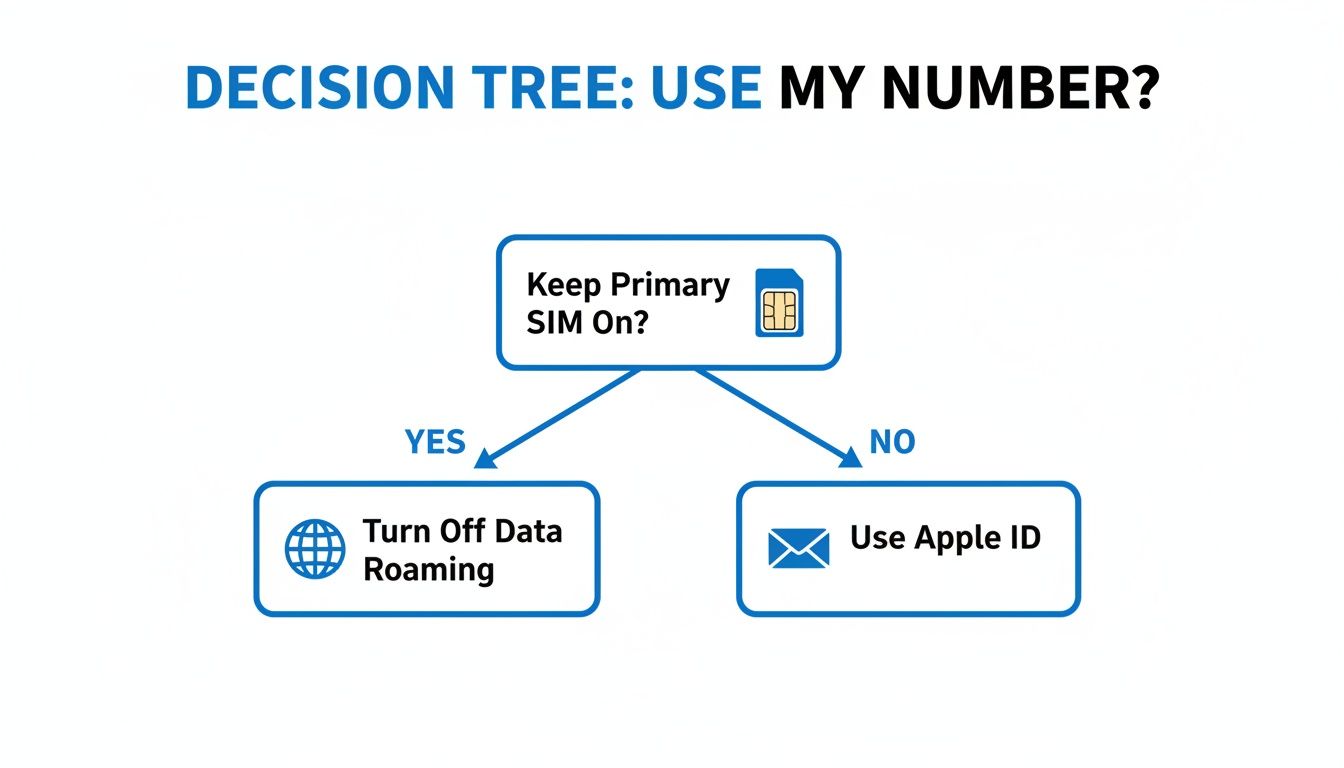
You can set this up without getting hit with any roaming charges by tweaking your iPhone’s dual SIM settings. The trick is to keep your primary SIM line on, but make sure its data roaming is switched off. For a closer look at how iPhones manage two lines at once, you can read up on how dual SIM works on your device.
This little decision tree breaks down the choice between using your number and your Apple ID.
To help you decide, here’s a quick comparison of the two approaches.
Deciding How Your iMessages Appear Abroad
Consideration
Using Your Apple ID Only
Keeping Your Primary Number
Simplicity
Easiest setup—just turn your primary SIM off.
Requires a small settings tweak (turn primary SIM on, data roaming off).
Continuity
New conversations start from your email, which may confuse some contacts.
All messages come from your familiar number. No confusion.
Risk of Charges
Zero risk of roaming charges from your home provider.
Zero risk, as long as you ensure data roaming is off on your primary SIM.
Best For
Short trips, digital detoxes, or when you don’t mind using your email.
Most travelers who want to stay in touch seamlessly.
The key takeaway is that to keep your number active for iMessage, your primary SIM has to stay on, but with its data roaming firmly switched off.
By setting things up this way, you truly get the best of both worlds. Your affordable travel eSIM from TapSim handles all the data, while your everyday number remains your caller ID. It’s a clever little trick that keeps you connected just like at home, but without the dread of a monster phone bill when you get back.
Troubleshooting Common eSIM and iMessage Issues
Even when you’ve done everything right, technology can sometimes have a mind of its own. If you’ve just set up your travel eSIM and find iMessage isn’t cooperating, don’t panic. Most of the time, the fix is surprisingly simple and will have you back online in minutes.
It’s often just a minor setting that’s been missed during setup. Running through a quick diagnostic checklist solves the vast majority of iMessage and eSIM problems, so you can get back to your trip without any messaging stress.
Quick Fixes for Activation and Sending Errors
Are you seeing that dreaded “Waiting for Activation” message, or are your messages stubbornly refusing to turn blue? Before you dive into complex settings, let’s start with the basics. These simple steps usually clear up the most common snags travelers encounter.
Never underestimate the power of a quick restart. Turning your iPhone off and on again forces it to re-establish its connection to both your home line and your new travel eSIM. It’s the oldest trick in the book for a reason!
If that doesn’t do the trick, work your way through this checklist:
Check Your Data Source: Pop over to Settings > Mobile Service > Mobile Data. Is your TapSim eSIM selected? This is the number one reason iMessage stops working abroad – your phone is trying to use a line with no data!
Give iMessage a Nudge: Go to Settings > Messages. Slide the iMessage toggle off, give it a good 30 seconds, and then switch it back on. This simple action forces your phone to re-register with Apple’s servers.
Confirm Your Data Balance: It might sound obvious, but have you run out of data? Try opening a web browser to see if you can get online. If not, you might need to top up your TapSim plan.
Update Your Software: Make sure your iPhone is running the latest version of iOS. Old software can occasionally cause weird compatibility issues with newer network profiles.
At times, the problem goes a bit deeper, relating to how your phone talks to the mobile network. If you’ve exhausted the basics, it might be worth understanding issues like a PDP authentication failure, which can offer more advanced solutions.
By working through these settings one by one, you can usually pinpoint and fix whatever’s holding up your iMessage. A few taps here and there are all it takes to get back to sharing your adventures with everyone back home.
Bringing It All Together
So, there you have it. Using iMessage with a data-only eSIM isn’t just possible—it’s genuinely the best way for most travelers to stay connected these days.
You now know the secret: iMessage is all about data, and your Apple ID is what holds everything together. With a couple of quick taps in your settings, you can keep your regular phone number active for iMessage and FaceTime, all without the fear of dreaded roaming charges from your provider back home.
Hopefully, you’re heading into your next trip feeling much more confident, with a solid, budget-friendly communication plan ready to go. All that’s left is to pick a data plan that matches your travel style.
Think of a provider like TapSim as the final piece of the puzzle. It gives you reliable data the second you touch down, wherever you are in the world. This is what ensures your iMessage just works, letting you focus on the adventure, not the phone bill.
Got Questions? We’ve Got Answers
Let’s clear up a few of the most common questions travelers have about iMessage and data-only eSIMs. Getting these details straight will give you total peace of mind before you jet off.
Will My Friends See My Phone Number or My Email Address?
This one is all down to how you set things up. If you follow our advice and leave your primary SIM turned on (just with data roaming switched off), your friends and family will see iMessages coming from your usual phone number. No confusion there.
On the other hand, if you turn your primary SIM off completely, your iMessages will be sent from your Apple ID email instead.
What Happens If I Text Someone on Android?
Ah, the classic blue bubble vs. green bubble dilemma. This is a crucial point to remember: iMessage only works its magic between Apple devices.
When you try to message an Android user, your iPhone will automatically try to send it as a standard SMS (a green bubble). Since your data-only eSIM doesn’t have an SMS plan, that message simply won’t go through.
To chat with your friends on other platforms, you’ll need to hop onto an app that uses data, like WhatsApp or Messenger.
Should I Just Turn My Primary SIM Off While I’m Away?
You can, but you don’t have to. In fact, to keep iMessage neatly tied to your phone number, it’s actually better to leave your home SIM on. The trick is to dive into your iPhone’s settings and make sure ‘Data Roaming’ is switched off for that primary line.
This clever move prevents it from connecting to expensive foreign data networks, but it keeps the line just active enough for iMessage to recognize your number. Just double-check that your travel eSIM is set as your default for Mobile Data.
Can I Still Get SMS Verification Codes on My Home Number?
For the most part, yes. As long as your primary SIM is still on (again, with data roaming off), you can usually receive incoming SMS texts from your home network without any issues.
This is a lifesaver for those two-factor authentication codes from your bank or other secure apps. It’s always a good idea to quickly check your home provider’s policy, though. Some might charge a tiny fee for receiving texts abroad, even if you’re not sending any out.
Stay connected effortlessly on your next adventure. With TapSim, you can get affordable, instant mobile data in over 150 destinations worldwide.
You’ve just landed in a new country, phone in hand, but the internet isn’t working. It’s a modern traveler’s nightmare, but don’t worry—the fix is usually surprisingly simple. Before you…
Dual SIM technology is a bit like having a hybrid car. It intelligently switches between two power sources to give you the best performance and efficiency. For your phone, this…
Figuring out how much data you’ll need for a trip can feel like a shot in the dark, but it really doesn’t have to be. For a standard week-long holiday,…
For any traveler, the best pay-as-you-go (PAYG) option is almost always a modern eSIM. Think about it from a practical standpoint: you get instant activation right from your phone, transparent…
Getting a new iPhone is always exciting, but for a traveler, ensuring your eSIM transfers smoothly is crucial. Whether it’s your primary number or a travel data plan for an…
Activating a travel eSIM is one of the smartest pre-trip tasks you can do, and it’s much simpler than it sounds. Think of it as a digital SIM card that…
Not long ago, staying connected abroad meant navigating a minefield of eye-watering roaming charges or scrambling to find a local SIM card the moment you landed. Thankfully, things have moved…