Does Google Maps Use Data? Your Guide to Smart Navigation
Share:
Yes, Google Maps uses your mobile data, but you might be surprised at how little it actually needs for basic navigation. The real data drain comes from specific features like satellite view or constantly searching for new places while you’re on the move. For any traveler, knowing how to manage this is key to exploring freely without worrying about unexpected costs.
How Much Data Does Google Maps Actually Use?
Keeping an eye on mobile data is a must for any traveler wanting to avoid high roaming charges. The good news? Google Maps is built to be data-efficient, especially when you’re just using it for its main job: getting you from point A to point B.
Think of it this way: when you first enter a destination, the app downloads the essential map “tiles” and route information. After that initial download, it mostly relies on your phone’s free GPS signal to pinpoint your location along that pre-loaded path.
So, when does it start to get data-hungry? It’s when you ask it for fresh information from the internet. This includes things like:
Searching for New Locations: Every time you look up a café or a landmark, the app has to pull new map data and details.
Switching to Satellite View: Those beautiful, high-resolution satellite photos are much larger files than the simple, standard map view.
Getting Live Traffic Updates: For real-time traffic conditions, the app constantly checks in with Google’s servers, which uses a steady trickle of data.
This image gives you a clear idea of the difference between the two main map modes.
As you can see, simply sticking to the standard map view uses about 10 times less data than browsing in satellite mode. That one small change can make a huge difference to your data allowance when traveling.
A Quick Breakdown: What to Expect
To give you a clearer picture, here’s a rough guide to how much data different Google Maps activities might use over an hour of travel.
Google Maps Feature
Estimated Data Usage (Per Hour)
Standard Turn-by-Turn Navigation
~5 MB
Live Traffic Updates
~10-20 MB
Searching & Exploring New Areas
~20-30 MB
Satellite View Browsing
~50 MB or more
Note: These are estimates. Your actual usage will vary based on your device, network, and how actively you interact with the map.
These figures show that while standard navigation is light on data, more intensive use can add up, especially on a long road trip or a multi-day city break.
Data Consumption in the Real World
To put this into perspective, let’s look at some real numbers. In the UK, where Google Maps handles over 150 million local searches every month, the average data consumption for standard navigation is only about 2.2MB per hour. You can discover more insights about UK Google Maps usage to see just how optimized it is.
This incredible efficiency makes it a go-to tool for travelers. However, if your trip involves a lot of spontaneous exploring or you need constant traffic updates in a busy city like Paris or Tokyo, having an affordable data plan gives you the freedom to navigate without constantly worrying about your bill. With a travel eSIM from TapSim, you can get a small data package and use it just for these essential moments.
Understanding GPS vs Mobile Data for Navigation
It’s a common point of confusion for travelers: what’s the difference between GPS and mobile data? Understanding how they work together is the key to navigating like a pro without racking up a huge phone bill.
The simplest way to think about it is this: GPS finds you, and data shows you where you are.
Your smartphone has a built-in GPS receiver, a tiny antenna that communicates directly with satellites orbiting the Earth. This global service is completely free and works anywhere on the planet, even if you have zero signal. It’s the magic behind that little blue dot that tracks your every move.
What is the Role of GPS?
The Global Positioning System (GPS) is essentially a one-way conversation. Your phone simply listens for signals pinging down from multiple satellites, cleverly calculates its distance from them, and then pinpoints your exact coordinates.
It never sends any information back up, which is why it doesn’t cost you anything or use a single byte of your mobile data. Think of it like tuning into a radio broadcast—you can listen all day, but the station has no idea you’re there. GPS works the same way, feeding your phone its location without needing an internet connection.
This is why you can often see your blue dot moving along on the map even when you’re completely offline. The catch? Without data, that blue dot is just drifting across a blank, grey screen.
Where Mobile Data Comes In
Mobile data is the other half of the equation. It’s the internet connection Google Maps needs to actually download the map itself—the streets, landmarks, and city names. It also pulls in all the dynamic, real-time information that makes the app so useful.
Here’s what your mobile data is busy doing in the background:
Downloading Map Tiles: Loading the visual map of your surroundings as you move.
Live Traffic: Fetching real-time updates on traffic jams, road closures, and accidents.
Searching for Places: Finding that perfect coffee shop or the nearest metro station.
Business Information: Pulling up opening hours, contact details, reviews, and photos.
Alternative Routes: Recalculating faster routes when conditions change.
Without an active data connection, all these live features disappear. This becomes a real issue when you land in a new country and are suddenly faced with high data roaming charges. Learning more about what mobile data roaming is can save you from a nasty surprise.
This is exactly why smart travelers plan ahead, either by downloading offline maps before they leave or by getting an affordable travel eSIM for their trip.
Your Guide to Using Google Maps Offline
You understand that GPS and mobile data aren’t the same thing—great. Now for the next step: mastering offline maps. This feature is a game-changer for any traveler, effectively turning your phone into a reliable sat-nav without using a single megabyte of your data allowance.
The secret is simple: you download the map for a specific area before you need it, saving all the essential information directly onto your phone. All you need is a decent Wi-Fi connection at home, in your hotel, or at a café before you head out. Once the map is saved, you can find places, get full turn-by-turn driving directions, and see your blue dot moving along the route—all while your phone is in airplane mode.
How to Download a Map for Offline Use
Saving your maps is a quick process that will save you a world of stress (and money) when you’re on the road.
Find Some Wi-Fi: First things first, connect to a Wi-Fi network. You definitely don’t want to be using your mobile data for this.
Open Google Maps: Launch the app and search for the place you’re going to. This could be a city like “Paris” or a whole region like “Tuscany”.
Find the ‘Download’ Button: Tap the name of the place that appears at the bottom of your screen. A menu will pop up where you’ll see a ‘Download’ option.
Frame Your Map: Google Maps will then show you a blue box over the map. You can pinch and zoom to adjust this box, making it bigger to cover a whole region or smaller to focus on a city center. The app even tells you exactly how much space it’ll take up on your phone.
Hit ‘Download’: Once you’ve framed the perfect area, just tap the download button. The app will save it straight to your device.
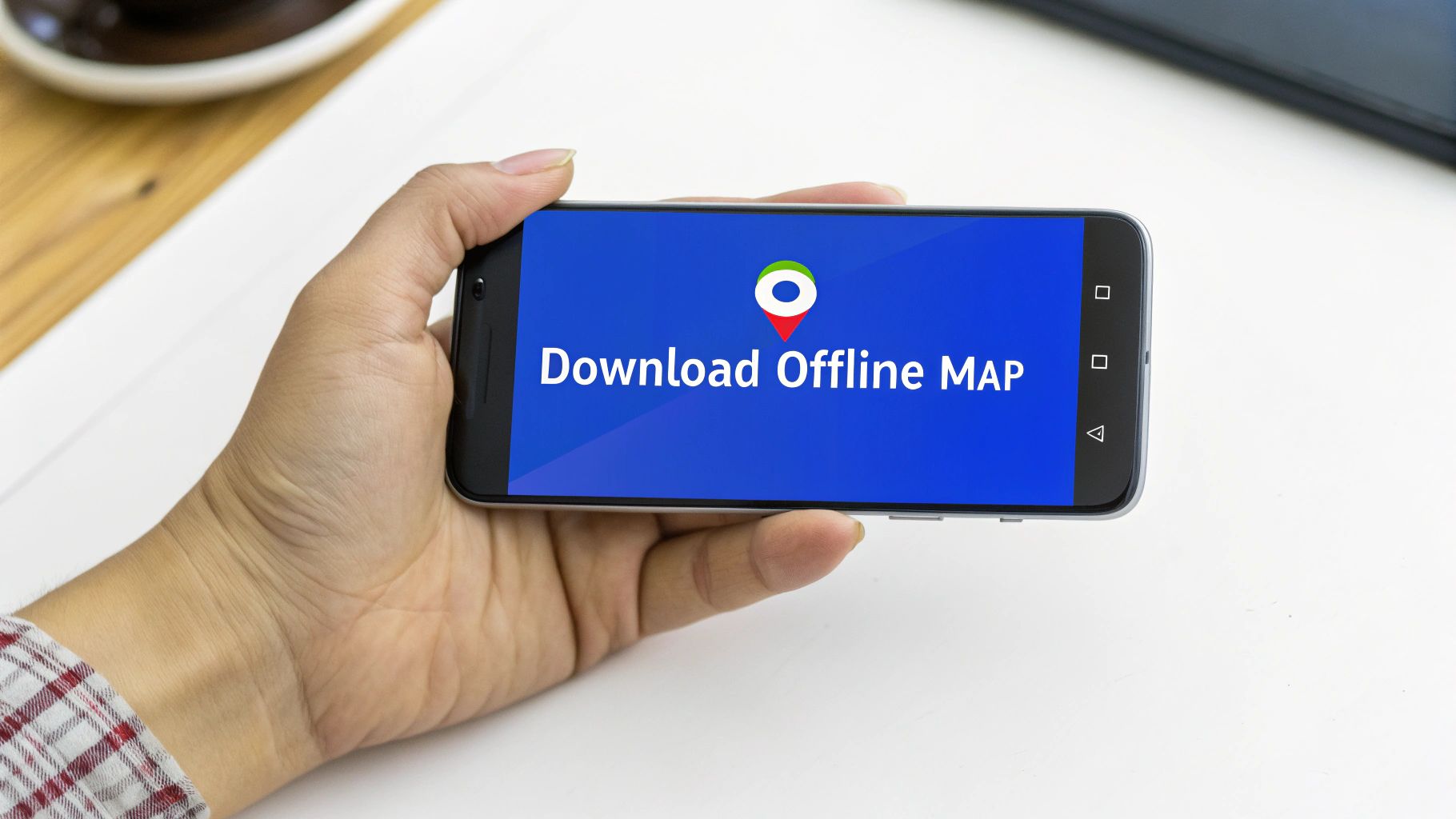
Here’s what that screen generally looks like when you’re ready to download.
This preview screen is incredibly helpful. Knowing precisely how much storage the map needs before you commit makes it easy to manage your phone’s memory, especially on a long trip.
Managing Your Offline Maps
Your downloaded maps are easy to find and manage. Just tap your profile picture in the top corner of Google Maps and select ‘Offline maps’. From this screen, you can rename them to something more useful (like “Central London Walk”), update them if they’re about to expire, or delete them when your trip’s over to free up space.
Pro Tip: Downloaded maps do expire, usually after about a year if they aren’t updated. Before you jet off on a big trip, it’s always smart to go to your saved maps and tap ‘Update’ on each one. This ensures you’ve got the most current road layouts and information.
What Works and What Doesn’t Offline
It’s important to know what you can and can’t do in offline mode. Think of a downloaded map as a snapshot in time—it’s incredibly useful, but it’s not a live service.
What you CAN do offline:
Get full turn-by-turn driving directions.
Search for streets and any locations you’ve saved within the map area.
See your real-time GPS position move across the map.
What you CANNOT do offline:
Get live traffic updates, accident alerts, or information on road closures.
Get directions for walking, cycling, or public transport.
Search for new businesses or points of interest that weren’t on the map when you downloaded it.
For those moments when you absolutely need that live data—to dodge a sudden traffic jam or find the best-rated coffee shop nearby—an eSIM is the perfect partner for your offline maps. It gives you an affordable, instant connection right when you need it. To make sure you’re fully prepared, check out our guide on how to use your phone abroad for more practical travel tech tips.
Smart Ways to Reduce Your Google Maps Data Usage
Downloading offline maps is your best bet for saving data, but a few other habits can make a massive difference, especially when you need a live connection. These small adjustments help you stay in control and make sure your data allowance lasts your whole trip.
The best part is that you don’t need to be a tech wizard to use these tips. They’re just simple, practical steps any traveler can take to become more data-savvy while exploring.
Choose the Right Map View
This is probably the easiest and most effective change you can make. Google Maps offers different map layers, and some are far more data-hungry than others.
Stick to the Default View: The standard, simplified map is incredibly lightweight. It’s designed to load quickly and use minimal data, which is exactly what you want for navigation.
Avoid Satellite View: It looks stunning, but that satellite layer is a real data guzzler. It’s made up of high-resolution images, and constantly loading them as you move can use up to 10 times more data than the default view. It’s fine to use it sparingly—maybe to check out your hotel’s surroundings while you’re on Wi-Fi—but always switch back before you hit the road.
Just by staying in the default map mode, you’re actively saving your data without giving up any core navigation features.
A simple rule of thumb for travelers: if you don’t need a photograph of the ground to find your way, stick to the standard map. Your data balance will thank you for it.
Pre-Load Your Route on Wi-Fi
This is a brilliant little trick that sits somewhere between using fully offline maps and live navigation. Before you walk out of your hotel or leave the airport’s free Wi-Fi, just enter your destination into Google Maps and let it calculate the route.
The app caches all the essential map info for that specific journey. Once you’re on your way and off Wi-Fi, your phone’s GPS will keep you on track, and the map will still work perfectly. You won’t get live traffic updates, but the turn-by-turn directions will guide you along the pre-loaded route using next to no mobile data.
Manage Background Data Usage
Did you know Google Maps can use data even when you aren’t actively using it? This happens through something called background app refresh, where the app quietly updates traffic info or your location history. For a traveler, that’s often an unnecessary data drain.
Thankfully, you can easily turn this off in your phone’s settings:
Go to your phone’s Settings: Head to the “Apps” or “Mobile Data” section.
Find Google Maps: Scroll through your installed apps and select it.
Restrict Background Data: Look for an option like “Mobile data & Wi-Fi” and simply toggle off the “Background data” permission.
This small change ensures the app only connects to the internet when you have it open and are actually looking at it. When you combine this with an affordable travel eSIM from TapSim, you get the best of both worlds—data when you need it for live updates, but no sneaky background usage when the app is closed.
Why An eSIM Is Your Best Navigation Companion
Offline maps are a brilliant safety net for any traveler. They give you a reliable, data-free way to handle basic navigation. But what about when you need information that’s happening right now? That’s where a travel eSIM becomes the perfect partner to your offline prep.
An affordable data plan gives you the freedom to go beyond a pre-planned route and really explore a place like a local. Imagine stepping out of a metro station in Tokyo and instantly searching for the highest-rated ramen shop nearby. Or picture yourself navigating a festival in Barcelona with real-time crowd updates.
Without live data, you’re stuck with what you saved yesterday. With it, the city truly opens up.
Unlock Real-Time Navigation Features
While offline maps will get you from A to B, a travel eSIM unlocks the full, dynamic power of Google Maps. This is crucial for getting around modern, bustling cities where things can change in an instant.
Even a small data plan lets you tap into features that offline mode simply can’t touch:
Live Traffic Updates: See accidents, roadworks, and traffic jams as they happen. This lets Google Maps find a faster route on the fly and saves you from getting stuck.
Public Transport Schedules: Check for last-minute train delays or find the next bus departure time, which is a lifesaver for spontaneous day trips.
On-the-Go Searches: Need to find a pharmacy, ATM, or a specific type of shop? Just search for it instead of wandering around.
Up-to-Date Business Info: Check opening times before you walk across town, only to find the museum you wanted to visit is closed on Tuesdays.
An eSIM doesn’t replace the need for offline maps; it enhances them. Think of it as your passport to spontaneity, giving you the confidence to change plans, discover hidden gems, and handle travel hiccups without stress.
Stay Connected Instantly and Affordably
The old way of getting connected abroad—hunting down a local SIM card shop or paying for expensive roaming—is a hassle. A travel eSIM changes the game completely.
With an eSIM from TapSim, you can buy and set up your data plan before you even pack your bags. The moment your plane touches down, you can switch on your plan and have affordable, high-speed data ready to go. No more fumbling with spotty airport Wi-Fi or worrying that your first map search will cost a fortune. If you’re curious about the tech, our guide explains how an eSIM works in simple terms.
This instant connection gives you peace of mind from the second you arrive. You can use Google Maps to find your hotel, book a ride, or just let family know you’ve landed safely—all without the fear of a surprise on your next phone bill.
Common Questions About Google Maps and Data
Even after mastering the basics of offline maps, a few common questions always seem to pop up for travelers trying to be smart with their data. Let’s tackle these head-on so you can navigate with complete confidence.
Does Google Maps Use Data When the App is Closed?
Yes, it can, but usually only in tiny amounts. If you have features like Location History or Timeline enabled, the app will occasionally use a bit of data in the background to log where you’ve been.
The easiest fix is to go into your phone’s settings and switch off background data access for the Google Maps app. It’s a simple toggle that puts you in control, guaranteeing you don’t use up your data allowance when you’re not actively looking for directions.
Can I Get Driving Directions with an Offline Map?
Absolutely! This is one of the best things about offline maps. Full turn-by-turn driving directions work perfectly without an internet connection. Your phone uses its built-in GPS receiver—which is free to use—to pinpoint your location on the map you’ve already saved, guiding you along your route.
What you won’t get are the features that rely on live information, like:
Real-time traffic updates that warn you about congestion ahead.
Instant alerts for road closures or accidents.
Smarter alternative routes that are calculated on the fly.
So, while an offline map is brilliant for getting you from point A to B, it won’t help you dodge that surprise traffic jam.
How Much Phone Storage Do Offline Maps Use?
The size of a downloaded map really depends on how much ground you’re trying to cover. A detailed map of a sprawling city like Rome or Bangkok might take up anywhere from 150-300MB of your phone’s storage.
On the other hand, if you’re just saving a small town or a specific neighborhood, the file could be as little as 30-50MB. The great thing is, Google Maps always tells you the estimated file size before you hit the download button, so you can easily manage your storage space.
It’s a smart travel habit to download the maps you need over Wi-Fi before your trip, and then simply delete them once you’re back home to free up space.
Should I Use Offline Maps or a Travel eSIM?
This is a great question, but it’s not an either/or situation. For the smoothest and most flexible travel experience, the best approach is to use them together. Think of them as a team, not competitors.
Your offline maps are your reliable, data-free safety net. They’re your guarantee that you can always find your way, even with zero signal.
A travel eSIM, like one from TapSim, is the perfect partner. It gives you affordable data to handle everything else—checking live traffic to find a faster route, looking up the best-rated café nearby, or using any other app you need on the go. This combination gives you the best of both worlds: the security of offline navigation and the freedom of live data.
Ready to pair your offline maps with the freedom of live data? With TapSim, you can get an affordable eSIM for over 150 destinations, activate it instantly, and navigate like a local without the fear of roaming charges. Check available eSIMs on TapSim.net.
You’ve just landed in a new country, phone in hand, but the internet isn’t working. It’s a modern traveler’s nightmare, but don’t worry—the fix is usually surprisingly simple. Before you…
Dual SIM technology is a bit like having a hybrid car. It intelligently switches between two power sources to give you the best performance and efficiency. For your phone, this…
Figuring out how much data you’ll need for a trip can feel like a shot in the dark, but it really doesn’t have to be. For a standard week-long holiday,…
For any traveler, the best pay-as-you-go (PAYG) option is almost always a modern eSIM. Think about it from a practical standpoint: you get instant activation right from your phone, transparent…
Getting a new iPhone is always exciting, but for a traveler, ensuring your eSIM transfers smoothly is crucial. Whether it’s your primary number or a travel data plan for an…
Activating a travel eSIM is one of the smartest pre-trip tasks you can do, and it’s much simpler than it sounds. Think of it as a digital SIM card that…
Not long ago, staying connected abroad meant navigating a minefield of eye-watering roaming charges or scrambling to find a local SIM card the moment you landed. Thankfully, things have moved…