Before you even start packing, there’s one key question every modern traveler needs to ask: “Does my phone support eSIM?” An embedded SIM, or eSIM, is a digital SIM that lets you activate a mobile data plan without a physical card. For anyone traveling abroad, it’s an absolute game-changer. This guide will help you figure it out, nice and simple.
Your Quick Guide to Checking eSIM Compatibility
Picture this: you land in a new country and you’re online instantly. No more hunting for a local SIM shop, no fumbling with tiny plastic cards, and definitely no eye-watering roaming charges from your home provider. That’s the freedom an eSIM gives you.
It’s essentially a small chip already built into your phone. This allows you to download and activate a data plan from providers like TapSim right on your screen. You can have Google Maps ready for directions or let everyone on WhatsApp know you’ve arrived safely, all from the moment you switch off airplane mode.
Most phones released since 2018—especially flagship models from Apple, Samsung, and Google—have this feature baked in. But it’s not a given. Some regional variations, carrier-locked devices, or slightly older models might miss out. That’s why a quick check is the first, most important step before buying a travel data plan.
Popular Phone Models That Often Support eSIM
While digging into your phone’s settings is the only way to be 100% certain, the table below is a handy cheat sheet for common models that usually come with eSIM technology. Just remember that things can sometimes differ based on where you bought your phone, so it’s always best to double-check your specific device.
Brand
Generally Supported Models
Apple
iPhone XR, XS, and all newer models (including SE 2nd Gen and later)
Samsung
Galaxy S20, Note 20, Fold, Flip series, and all newer models
Google
Pixel 3 series and all newer models (excluding the 3a from certain regions)
Ultimately, a quick look at your device’s settings will give you a definitive answer.
How to Confirm on Your Device
Finding out for sure is easier than you might think. There are a couple of straightforward ways to see if your phone is ready for a travel eSIM.
Dive into your phone’s settings: This is the most reliable method. For an iPhone, you’ll be looking for an “Add eSIM” or “Add Cellular Plan” option. On Android devices, you’ll typically find this under Network, Connections, or SIM Manager. If you see that option, you’re good to go.
Check your model or IMEI number: Every phone has a unique model number and an IMEI (International Mobile Equipment Identity). A quick online search for your specific model number will usually pull up its specs, including eSIM support. Another tell-tale sign is seeing two IMEI numbers listed in your device info—one for the physical SIM and one for the digital eSIM.
The next sections will walk you through exactly where to find this information on both iPhone and Android, so you can head off on your travels with complete peace of mind.
How to Check for eSIM Support on an iPhone
If you’re an iPhone user, checking for eSIM compatibility is usually a breeze. Apple was an early adopter of the technology, so if you’ve got a reasonably new model, you’re almost certainly good to go. The most reliable way to know for sure is to dive right into your phone’s settings.
This method cuts through the noise. It doesn’t matter where you bought your iPhone or what its exact model name is—the settings menu will tell you exactly what your device is capable of.
The Fastest Check: Dive into Your Settings
Let’s get straight to it. The quickest way to see if you can add a digital SIM is to look for the “Add eSIM” option. If you see it, that’s your green light.
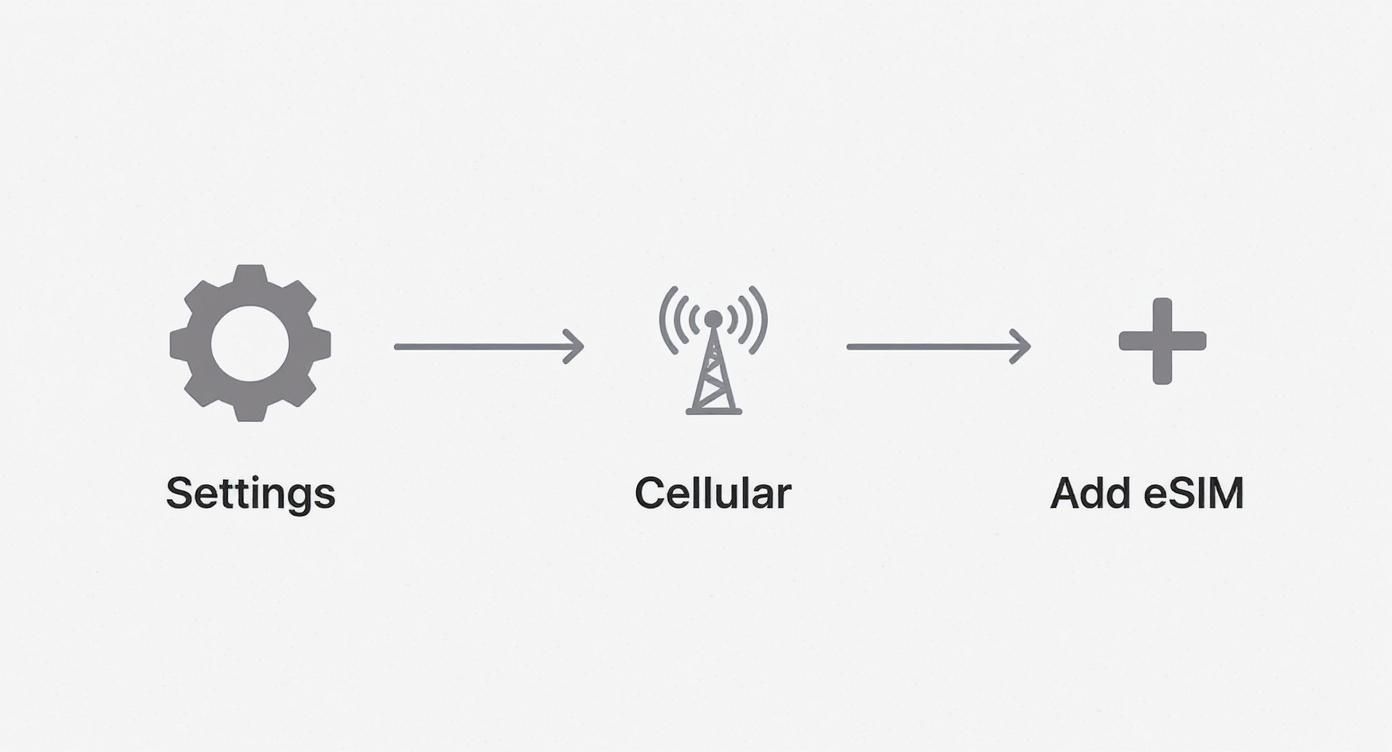
First, open up the Settings app.
Next, tap on Cellular (this might be called Mobile Data, depending on your region).
Now, just scan the screen for a button that says Add eSIM or Add Cellular Plan.
See one of those options? Fantastic! That confirms your iPhone is eSIM compatible. It means the hardware is ready and waiting for you to install a digital plan from a provider like TapSim for your next adventure.
If that option is missing, it’s a strong sign that your iPhone doesn’t support eSIMs, which is common for any model older than the iPhone XR.
Sometimes you just want to be doubly sure, especially if you bought your phone second-hand or in another country. The best way to do that is by finding your phone’s model number and its unique digital ID, the IMEI.
Here’s a pro tip: every phone that can use an eSIM has a second IMEI number just for its digital SIM. Spotting this is a surefire sign you’re ready.
Here’s how to find that info:
Head to Settings > General > About.
Look for the Model Number. It’ll be a code like A2221. A quick web search for that number will pull up its official specs, including whether it supports eSIM.
Back on that same About screen, scroll down a bit further. You’ll see a section for IMEI numbers. If you see two of them, with one clearly labelled “Digital SIM” or similar, your iPhone is 100% eSIM-ready.
Traveler’s Tip: Be aware of a small exception. iPhone models made specifically for mainland China sometimes come with two physical SIM slots instead of the usual physical SIM and an eSIM. That’s why checking your settings directly is always the most reliable method.
Taking a minute to check this before you travel can save you a world of hassle. You’ll know you can buy and install a travel eSIM with confidence, letting you skip the queue for a local SIM card when you land. It’s a tiny bit of prep that makes staying connected completely effortless.
Finding eSIM Support on Your Android Device
The world of Android phones is wonderfully diverse, with fantastic devices from brands like Samsung, Google, and many others. This variety means the path to checking if your phone supports eSIM can differ slightly, but the core principles remain the same.
Unlike the more standardised iPhone menus, finding the eSIM setting on an Android device sometimes involves a little exploration. The good news is that it’s almost always located right where you manage your mobile connectivity.
Navigating Your Android Settings
Your first stop should be the Settings app. The exact wording might change depending on your phone’s manufacturer and the version of Android it’s running, but you’re looking for menus related to your mobile connection.
Common paths to check include:
Settings > Network & internet > SIMs
Settings > Connections > SIM manager
Once you’re in the right place, scan for an option like “Add eSIM” or “Download a SIM instead?“. If you see this prompt, that’s a clear confirmation your device is ready for a travel eSIM. This is easily the simplest and most direct way to answer the question, “Does my phone support eSIM?”
A Real-World Example: On a Google Pixel phone, you’ll likely tap the ‘+’ sign next to ‘SIMs’ and see a ‘Download a new eSIM’ option. On a Samsung Galaxy, the ‘SIM manager’ will clearly show an ‘Add eSIM’ button if the feature is available.
The Universal IMEI Check
If you can’t find the option in your settings or just want a definitive, technical confirmation, there’s a universal method that works on nearly every phone, regardless of the brand. This involves checking your phone’s unique identity numbers, known as IMEI numbers.
Simply open your phone’s dialer app, as if you were making a call, and type in the code *#06#.
Your phone will immediately display its IMEI information. If you see two IMEI numbers listed, it’s a guaranteed sign that your device has Dual SIM capabilities, with one of those being for an eSIM. One IMEI is for the physical SIM slot, and the second is for the embedded digital SIM.
The following infographic shows the basic steps for checking eSIM compatibility on an iPhone, which follows a similar logic of looking for the ‘Add eSIM’ option in the settings.
This visual guide highlights that the presence of an option to add a new digital plan is the key indicator of compatibility across different operating systems.
Finding Your Model Number
Another reliable backup is to find your phone’s exact model number and look up its specifications online. You can typically find this by going to Settings > About phone. The model number listed there will give you all the details you need with a quick search, confirming whether it was built with eSIM technology.
Taking a few moments to perform these checks ensures you’re fully prepared for your trip. Once confirmed, you can confidently browse and purchase an affordable data plan from TapSim before you even leave home.
Supported Phones and Other Key Considerations
Knowing the exact steps to check your device is brilliant, but it’s also handy to have a general sense of which phones typically support eSIMs. This gives you a quick first impression of whether your handset is likely to be ready for a travel eSIM.
As a rule of thumb, most major manufacturers started building eSIM technology into their flagship phones around 2018. So, if you’ve got a top-tier phone from the last few years, the odds are definitely in your favor.
A Quick Look at Popular eSIM-Ready Phones
While this is by no means a complete list, it covers the most common devices we see travelers using. If your phone is on here, that’s a fantastic sign, but always double-check using the steps we covered earlier to be absolutely certain.
Apple: iPhone XR, iPhone XS, and every model released since, including the iPhone SE (2nd generation and newer).
Samsung: Galaxy S20 series, Note 20 series, and all newer flagship models. This also includes the popular Fold and Flip lines.
Google: Pixel 3 series and all newer models (though be aware there were some regional exceptions with the Pixel 3a).
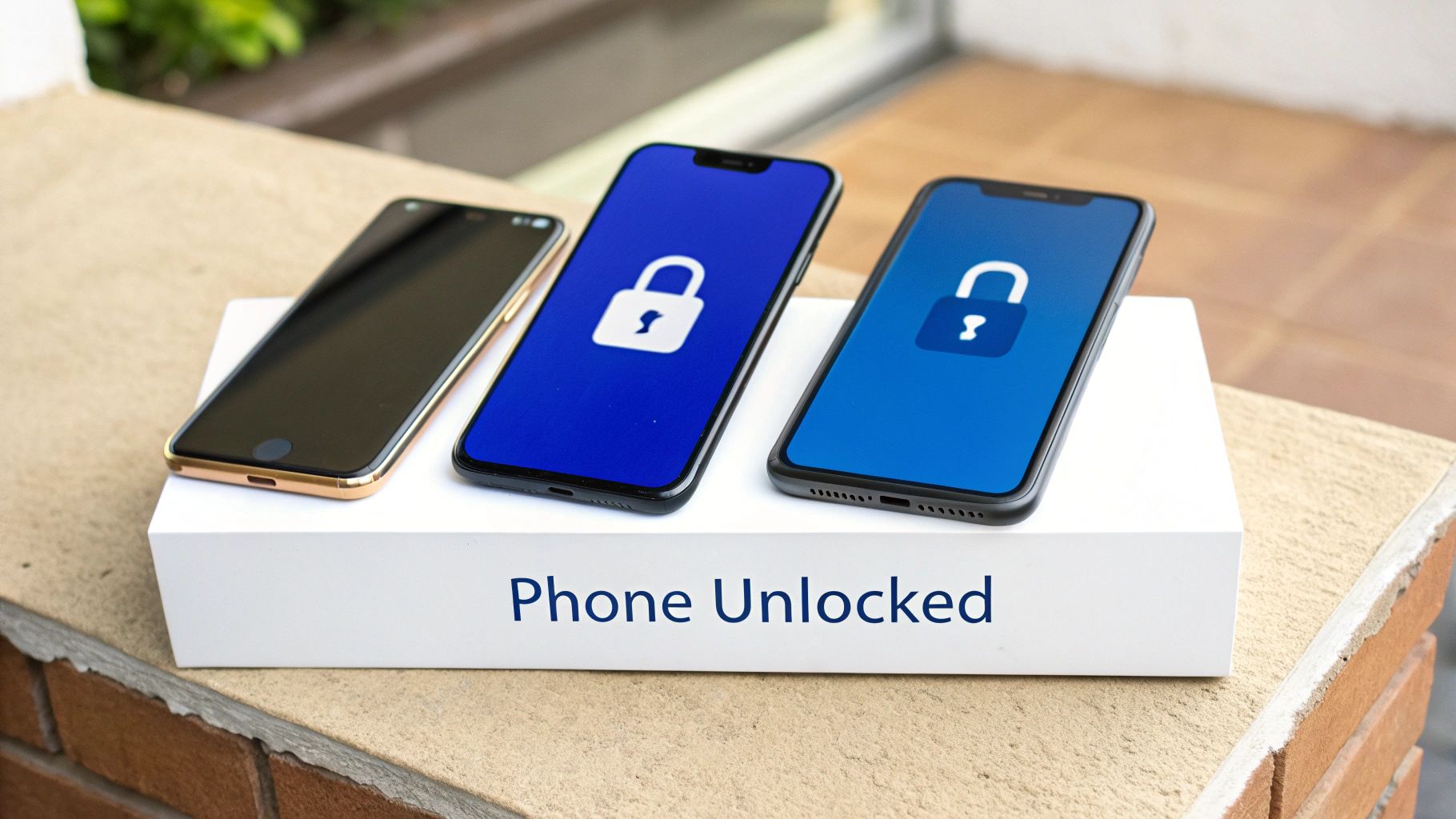
Right, this is a crucial point that catches so many travelers out. Your phone can be perfectly eSIM-compatible on paper but still completely unable to use a travel eSIM. Why? Because the device is carrier-locked.
A carrier-locked phone is one you bought directly from a mobile provider as part of a contract. It’s been programmed to only accept SIMs from that specific network. If your phone is locked, it will simply reject an eSIM from any other company, including one from TapSim.
Traveler’s Reality Check: There’s nothing more frustrating than finding out your phone is locked right before you fly. You might have the latest eSIM-ready device, but if it can’t accept a new provider, you’re stuck facing expensive roaming charges or constantly hunting for Wi-Fi.
How to Check if Your Phone Is Unlocked
Thankfully, checking your phone’s lock status is straightforward.
On an iPhone, just pop into Settings > General > About. Scroll down until you see “Carrier Lock” or “Network Provider Lock.” If it clearly says “No SIM restrictions,” you’re good to go—your phone is unlocked and will accept any eSIM.
For most Android devices, the path is usually something like Settings > Network & internet > SIMs. If you can see an option to “Add a network” or “Add operator,” your phone is almost certainly unlocked. If you’re still not sure, the most reliable method is to simply contact your home mobile provider. They can confirm its status and, if it is locked, tell you how to get it unlocked—a process you’ll want to start well before your departure date.
The move towards eSIMs is happening fast. It’s estimated that by 2025, nearly 60% of all new smartphones sold globally will be eSIM-compatible. This shows a clear shift toward digital connectivity that makes international travel easier than ever.
What to Do If Your Phone Isn’t eSIM Compatible
Finding out your phone doesn’t support eSIMs can feel like a spanner in the works for your travel plans, but it’s far from a dead end. Even with a slightly older handset, you’ve still got some really solid options for staying connected without breaking the bank.
The most tried-and-tested alternative is simply buying a local physical SIM card once you land. For years, this was the go-to move for savvy travelers. It’s often very cheap and gets you a local number along with plenty of data.
Of course, this classic method isn’t without its own headaches. You have to hunt down a mobile phone shop or an airport kiosk right after a long flight, which isn’t always fun. There can be language barriers to navigate when choosing a plan, and don’t forget you’ll need a paperclip or a SIM tool to physically swap out the card.
Weighing Your Other Options
Another path is to fall back on your home provider’s international roaming package. This is definitely the most convenient option, but it’s almost always the most expensive one, too. Those daily roaming fees can stack up frighteningly fast, leaving you with a nasty bill shock when you get back home.
Traveler’s Tip: If you’re tempted by a roaming package, read the fine print with a magnifying glass. Many plans cap your high-speed data and then throttle you down to painfully slow speeds, which is the last thing you want when you’re trying to pull up a map in a new city.
So, what’s the game plan? Let’s break it down.
For short trips: Grabbing a local SIM is probably worth the initial hassle, especially if you’re staying put in one country.
For longer or multi-country trips: The chore of finding and buying a new SIM in every country you visit can get old really fast.
For budget-conscious travelers: Steer clear of your home provider’s roaming fees. To get a better handle on these costs, take a look at our guide on how to avoid roaming charges abroad.
At the end of the day, if your current phone is a no-go for eSIMs, planning to pick up a local physical SIM is your best bet for affordable, reliable data. It takes a little effort when you arrive, but it’ll save you a fortune compared to roaming. And for your next phone upgrade? Making sure it has eSIM support will make all your future adventures that much simpler.
Your Top eSIM Questions, Answered
Let’s tackle some of the most common questions travelers have about eSIMs. Getting these sorted before you fly will give you peace of mind, knowing your connectivity is covered the moment you touch down.
Can I Use an eSIM and a Physical SIM at the Same Time?
Yes, you absolutely can! This is one of the best perks of having an eSIM-ready phone. It’s a feature called Dual SIM, Dual Standby, and it’s a game-changer for travelers.
Picture this: your phone has your regular physical SIM from back home and your travel eSIM, both active at once. This setup is incredibly handy. You can keep your home number live for receiving important texts (like one-time passcodes from your bank) while using the cheap, fast data from your travel eSIM for everything else – think Google Maps, WhatsApp, and browsing local recommendations.
Traveler’s Tip: When you activate your travel eSIM, your phone will ask which line you want to use for mobile data. Just pick your new eSIM for data. This simple step ensures you avoid nasty roaming charges from your home network while staying fully connected.
Does My Phone Need to Be Unlocked for an eSIM?
This is a crucial one: yes, your phone must be unlocked to use a travel eSIM from a provider like TapSim. An unlocked phone is simply a device that isn’t tied to a specific mobile network.
If you bought your phone directly from the manufacturer, like Apple or Samsung, it’s almost certainly unlocked. The potential catch comes if you got it as part of a contract from a network provider. In that case, it might be “carrier-locked,” meaning it’s programmed to only accept SIMs (both physical and digital) from that specific company.
A locked phone will reject a travel eSIM, even if it has the right hardware. Before you pack your bags, it’s essential to check your phone’s lock status in your settings or give your home network a quick call to confirm.
What’s the General Awareness of eSIMs?
While eSIM technology is becoming more common, many people are still just getting to grips with it. Global awareness is on the rise, but there’s still a bit of a knowledge gap.
A recent survey really drove this home. It found that only 33% of UK adults could correctly explain what an eSIM is, and a massive 42% weren’t sure if their own phone even supported it. But despite the confusion, the interest is definitely there – 56% of people said they were keen to use eSIMs for traveling abroad. You can discover more insights about UK eSIM adoption and its future to see where things are headed. It just goes to show that while the tech is brilliant, clear and simple information is what travelers really need.
Knowing the answers to these questions helps you get properly prepared. By making sure your phone is unlocked and getting your head around how Dual SIM works, you’re all set to enjoy the easy, affordable data a travel eSIM offers. That leaves you free to focus on the adventure ahead.
Ready to travel without the hassle of roaming fees? With TapSim, you can get connected in over 150 destinations in just a few minutes. Check available eSIMs on https://tapsim.net and make your next trip the most connected one yet.
You’ve just landed in a new country, phone in hand, but the internet isn’t working. It’s a modern traveler’s nightmare, but don’t worry—the fix is usually surprisingly simple. Before you…
Dual SIM technology is a bit like having a hybrid car. It intelligently switches between two power sources to give you the best performance and efficiency. For your phone, this…
Figuring out how much data you’ll need for a trip can feel like a shot in the dark, but it really doesn’t have to be. For a standard week-long holiday,…
For any traveler, the best pay-as-you-go (PAYG) option is almost always a modern eSIM. Think about it from a practical standpoint: you get instant activation right from your phone, transparent…
Getting a new iPhone is always exciting, but for a traveler, ensuring your eSIM transfers smoothly is crucial. Whether it’s your primary number or a travel data plan for an…
Activating a travel eSIM is one of the smartest pre-trip tasks you can do, and it’s much simpler than it sounds. Think of it as a digital SIM card that…
Not long ago, staying connected abroad meant navigating a minefield of eye-watering roaming charges or scrambling to find a local SIM card the moment you landed. Thankfully, things have moved…