Your iPhone 15 Travel Guide: Staying Connected Without a SIM Slot
Share:
If you’re traveling with a newer iPhone 15, especially one from the US, you’ll notice something missing: the physical SIM card tray. This means your new best friend for staying connected abroad is the eSIM. Think of it as a digital SIM card that you can download and install with just a few taps. It’s the key to getting online the moment your plane touches down, without fumbling with tiny plastic cards.
Your Pre-Trip iPhone 15 Readiness Check
Before you even start packing, there are a couple of quick checks you need to run on your iPhone 15. Honestly, spending five minutes on this at home can save you a world of frustration trying to find a shaky café Wi-Fi signal when you land. For anyone with an eSIM-only phone, this isn’t just a good idea—it’s essential.
Let’s quickly walk through what you need to verify to ensure your travel eSIM works flawlessly from day one.
Is Your iPhone Unlocked?
First things first, you absolutely must confirm your iPhone 15 is “carrier-unlocked.” A locked phone is tied to the mobile network you bought it from, which means it will reject an eSIM from another provider. An unlocked phone, on the other hand, is free to connect to any network you choose.
It’s easy to check. Just go to Settings > General > About. Scroll down until you see Carrier Lock. If it says “No SIM restrictions”, you’re all set. If you see a carrier’s name there, your phone is locked, and you’ll need to contact them to get it unlocked before you can use any travel eSIM.
I can’t stress this enough: a locked iPhone is the number one reason travelers run into trouble activating an eSIM. Checking for “No SIM restrictions” before you buy a plan is the single most important thing you can do to guarantee a smooth experience.
A Quick Look at Your iPhone 15’s eSIM Features
The good news is that the iPhone 15 is built for modern travel. It can store up to eight or more different eSIM profiles at once, and you can have two of them active at any given time.
This dual-SIM capability is a game-changer for travelers. You can keep your home number active for important calls or texts while using a travel eSIM from a provider like TapSim for all your data needs, saving you a fortune on roaming charges. If you’re hopping between countries in Europe or Asia, you can even pre-load all your eSIMs before you leave and just switch them on as you arrive. To be certain about your device, you can always check out a detailed guide on whether your phone supports eSIM technology.
Apple’s big push towards eSIM-only models is really accelerating the shift away from physical SIMs worldwide.
Before we move on, here’s a quick table summarizing the absolute must-do checks for your iPhone 15.
Essential Pre-Travel iPhone 15 Checks
This table breaks down the non-negotiable checks every iPhone 15 owner should perform before heading off on their travels.
Check
Why It’s Critical for Travel
How to Verify
Carrier Lock Status
A locked iPhone will not accept a travel eSIM from another provider, rendering it useless.
Go to Settings > General > About. Look for “No SIM restrictions” under Carrier Lock.
iOS Version
Older versions of iOS can sometimes have bugs or compatibility issues with eSIM activation.
Go to Settings > General > Software Update. Install any pending updates.
eSIM Compatibility
While all iPhone 15 models support eSIM, a quick confirmation provides peace of mind.
All iPhone 15 models are eSIM compatible. For other models, check your device specifications or online.
Getting these small but crucial steps out of the way ensures that when you arrive, you can focus on your trip, not on troubleshooting your phone.
How to Choose and Install Your Travel eSIM From Home
With your iPhone 15 prepped and ready, it’s time for the best part: sorting out your mobile data from your sofa. This is the magic of using an eSIM for travel—no more hunting for airport SIM card kiosks after a long flight.
Finding the right plan used to be a headache, but now it’s incredibly straightforward. Are you planning a whirlwind tour through Italy, France, and Spain? A regional Europe eSIM is exactly what you need. Just popping over to Japan for a week? A country-specific plan is your best bet.
With TapSim, travelers can find plans with clear, upfront pricing, showing exactly how much data you get and for how long. No hidden fees, no nasty surprises. It’s the kind of peace of mind you really appreciate before a big trip.
Installing Your eSIM in Minutes
After you buy your plan, a QR code will arrive in your email inbox almost instantly. Think of this as your digital ticket to getting connected abroad. The installation itself is simple and takes only a few minutes, but remember—you’ll need a solid Wi-Fi connection to download the eSIM profile to your phone. Always, always do this before you leave for the airport.
This whole process is designed to get you sorted long before you even think about packing.
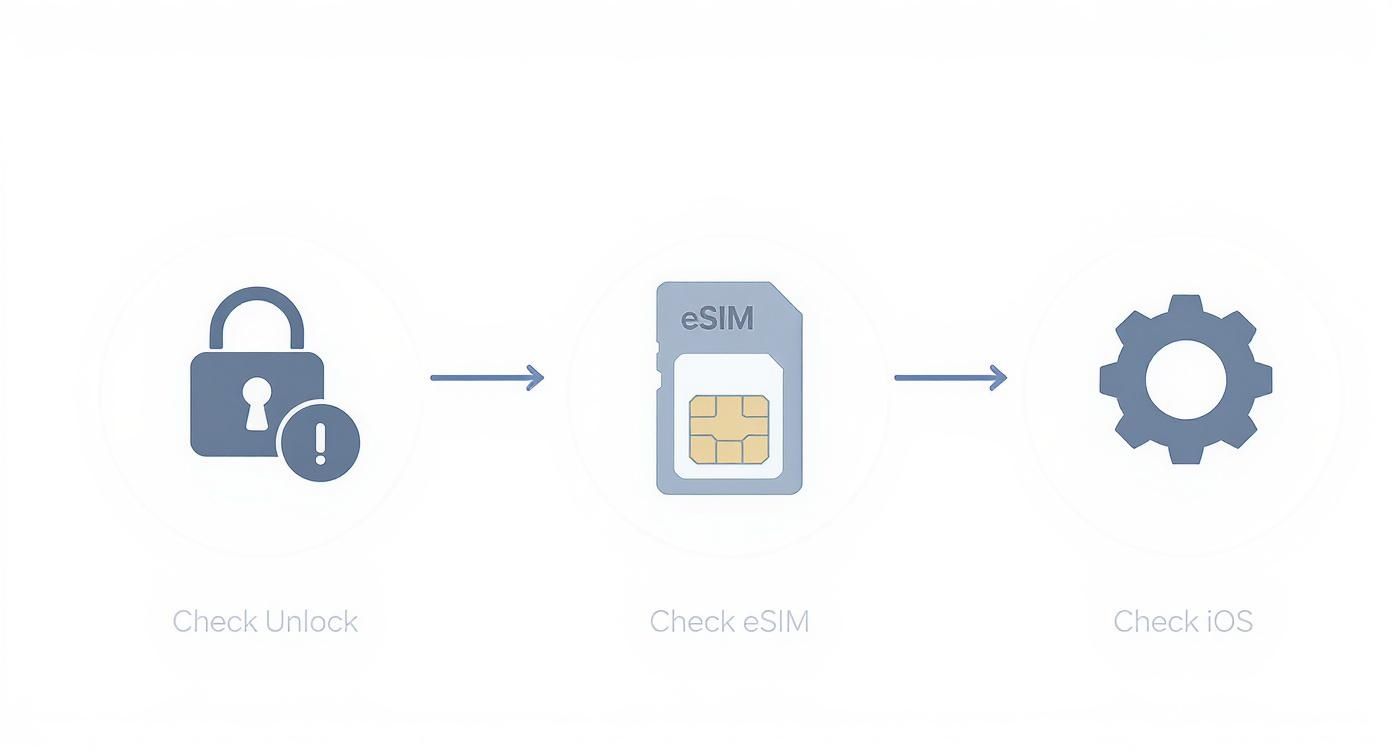
As you can see, confirming your iPhone is unlocked, eSIM-compatible, and running the latest iOS is the groundwork for a smooth setup.
To get started, just open your iPhone’s camera and scan the QR code from your email. A prompt will appear asking to add a cellular plan. Tap it, follow the on-screen instructions, and your new travel eSIM will be installed right alongside your regular one. For a more detailed walkthrough, check out this guide on how to activate an eSIM on your iPhone.
A Pro Tip for Staying Organized
Here’s a small trick that experienced travelers live by. After installing your new eSIM, your iPhone will ask you to give it a label. Be specific here! Don’t just call it “Travel” or “Secondary.”
Give it a name that you’ll instantly recognize:
Europe Data: Perfect if you’re country-hopping.
Thailand Holiday: Leaves no room for doubt.
USA Work Trip: Helps keep business and personal lines separate.
This simple habit of labeling your eSIM properly makes managing your data a breeze. When you land, you’ll know exactly which line to switch on without any guesswork. It makes going from “plane mode” to “holiday mode” completely seamless.
By spending a few minutes setting this up before you go, you’re saving yourself from one of the most common travel frustrations. You can step off the plane, switch on your travel data, and immediately order a taxi, pull up your hotel booking, or send that “I’ve landed safely!” message to your family.
How to Configure Your iPhone for Seamless Global Data
Alright, your travel eSIM is installed. Now for the most important part: telling your iPhone 15 what to do with it. Getting these settings right is the secret to unlocking cheap, fast data abroad and avoiding that dreaded bill shock from your provider back home. Thankfully, sorting out your dual-SIM settings is much easier than it sounds and puts you firmly in control.
The goal here is simple. We need to instruct your iPhone to use your new travel eSIM for all things internet—think Google Maps, Instagram, and web browsing—while keeping your primary home number active for any calls or texts you might need to receive. It’s the perfect setup for any modern traveler.
Mastering Your Mobile Data Settings
First, head into Settings > Mobile Service. You should see both your primary line and the travel eSIM you just labeled. Tap on Mobile Data and simply select your travel eSIM (the one you named ‘Europe Data’ or similar). That one tap tells your iPhone to channel all its internet activity through your new, affordable plan.
Now for the crucial safety step. Back in the Mobile Service menu, tap on your primary line and make absolutely sure the Data Roaming toggle is switched off. This is your financial safety net, preventing your home network from connecting to data services abroad and racking up charges.
Traveler’s Tip: I can’t stress this enough: double-check that your home line’s data roaming is off. It’s the number one culprit behind surprise bills. By setting your travel eSIM for data and disabling roaming on your primary line, you’ve built a solid firewall against unexpected costs.
This kind of hassle-free connectivity is exactly why eSIMs have exploded in popularity. Millions of travelers are now using eSIMs every year. People are quickly realizing they can get online with a local plan in minutes, a far cry from the old days of expensive roaming add-ons.
Understanding Key iPhone 15 Settings
Your iPhone 15 has a couple of other settings that are worth knowing about. Managed correctly, they can make your trip even smoother.
Default Voice Line: This setting decides which number your phone uses to make calls. You’ll likely want to keep this set to your primary home number. If you’re using a data-only eSIM from a provider like TapSim, this ensures your calls still go through your normal line.
Allow Mobile Data Switching: This sounds useful, but I almost always recommend keeping it turned off while traveling. If it’s on, your iPhone might automatically switch back to your home SIM for data if it thinks the travel eSIM signal is weak. That could trigger roaming charges and completely undo all your careful prep work.
Turning Your iPhone Into a Personal Hotspot
One of the best perks of having a generous data allowance on a travel eSIM is the ability to share it. If your plan supports it, your iPhone 15 can become a personal hotspot for your laptop, tablet, or even a friend’s phone.
Just go to Settings > Personal Hotspot and flip the Allow Others to Join switch on. Your phone will instantly create a secure Wi-Fi network. It’s an absolute lifesaver when you need to get some work done and the café Wi-Fi is painfully slow, or when you need to help a travel companion get online.
Troubleshooting Common eSIM Issues on the Go
You’ve landed, switched your iPhone 15 off airplane mode, and… nothing. It’s a moment that can spark a little bit of panic, but don’t worry. Even with the best preparation, technology sometimes needs a gentle nudge to get going. The good news is that most eSIM connection problems are surprisingly easy to fix right from your phone, getting you online in minutes.
Before you start digging into complex settings, let’s cover the basics. Honestly, the first and most effective step is often just a simple restart of your iPhone. This forces your device to re-scan and establish a fresh connection to the local network, which solves a surprising number of minor glitches.
If that doesn’t do the trick, double-check that your travel eSIM is actually turned on in your settings. It’s an easy thing to overlook after a long flight.
Digging a Little Deeper
Still no signal bars? It’s time to look at your network settings. Your iPhone is supposed to automatically latch onto the best local provider, but sometimes it gets stuck. You can give it a hand by manually selecting a network yourself.
Just go to Settings > Mobile Service, select your travel eSIM, and then tap on Network Selection. Switch off the Automatic toggle and give it a moment. A list of available networks will pop up. Now, just pick one of the supported local carriers listed in your eSIM provider’s instructions. This simple action often forces the connection your eSIM was waiting for.
One of the most common reasons an eSIM won’t connect is that it can’t find its preferred network partner. Manually selecting a carrier from the list is like giving your iPhone a map and pointing it in the right direction. From my experience, it’s a quick fix that sorts the problem out more than half the time.
When Data Isn’t Working
What if you can see signal bars but have no actual internet connection? This almost always points to an issue with your APN (Access Point Name) settings.
While most modern eSIMs, like those from TapSim, configure the APN automatically, some local networks still require you to enter it manually. Your eSIM provider will give you these specific details if they’re needed.
To enter them, head to Settings > Mobile Service, choose your eSIM, and find the Mobile Data Network option. Fill in the details exactly as provided—spelling and punctuation count! A quick restart after saving the new settings should get your data flowing. For a more detailed walkthrough, you can explore our full troubleshooting guide for mobile data while travelling.
Knowing these few simple tricks means you’re equipped to handle most minor hiccups yourself. Instead of feeling stranded without a connection, you can solve the issue and get right back to enjoying your trip.
How to Manage Your Data and Top Up on the Go
You’re finally abroad, connected, and exploring. The last thing you need is to suddenly run out of data just as you’re trying to pull up a map or book a ride. Thankfully, keeping tabs on your usage with an iPhone 15 is simple, making sure your travel eSIM plan goes the distance.
A quick peek in your settings is all it takes to avoid any nasty surprises. Just navigate to Settings > Mobile Service and take a look at the “Mobile Data” section. Your iPhone will show a running total of how much data your travel eSIM has used under “Current Period.” Think of this as your data dashboard.
Finding Your Data-Hungry Apps
Right below that total usage figure, you’ll see a list of every app and how much data it has used. This is often an eye-opener. I’ve found that background refreshes for social media apps or automatic cloud photo uploads can burn through a data package way faster than you’d expect.
If you find an app that’s being a bit greedy, you can easily cut it off. Just flick the switch next to its name. This stops it from using your precious mobile data, forcing it to wait until you’re on Wi-Fi. It’s a brilliant way to stretch your allowance without having to delete the app entirely.
Topping Up Your eSIM Couldn’t Be Easier
So what happens if you decide to extend your trip, or you’ve just been streaming more than you planned? This is where the beauty of an eSIM really comes into its own. In the old days, running low meant a frantic hunt for a local shop selling physical SIM cards. Now, it’s a completely painless, digital affair.
Most modern providers, TapSim included, let you buy more data right from their app or website. A few quick taps are all it takes to grab a new data bundle, and it gets added to your current eSIM profile. You don’t need to scan a new QR code or reinstall anything—the extra data just appears, ready to use almost instantly.
The ability to top up on the fly is a game-changer for travelers. It means you can start with a smaller, cheaper plan and just add more data if you need it. This gives you complete control over what you spend and prevents you from buying a huge bundle you might not even use.
This move to digital convenience is part of a massive shift in mobile tech. By 2025, it’s predicted that around 60% of all new smartphones sold globally will be eSIM-compatible. GSMA Intelligence even projects the total number of eSIM connections to reach roughly 3.4 billion by then. It’s clear this technology is quickly becoming the new standard. You can read more about the global rise of eSIMs and what it means for travellers if you’re curious.
This kind of flexibility is what makes modern travel so much smoother, ensuring you stay connected from the moment you land until you’re back home.
Got Questions About Your iPhone 15 Travel eSIM?
Switching from a physical SIM card to an eSIM for the first time can feel a little strange, so it’s natural to have a few questions. The old routine of finding a paperclip to pop out a tiny bit of plastic is gone, replaced by a much simpler, digital process.
Let’s walk through some of the most common queries people have. Getting these sorted before you fly gives you the confidence to manage your phone’s connectivity like a seasoned traveler, wherever you land.
Can I Still Use My Home Number Abroad?
Yes, you absolutely can. This is one of the best features of having a dual-SIM iPhone. You can keep your primary home number active for calls and texts while using a separate travel eSIM just for affordable mobile data.
It’s the ideal setup for staying in touch without racking up eye-watering roaming charges. You just need to dive into your iPhone’s settings and tell it to use the travel eSIM for data, while keeping your home number as the default for voice and SMS. This way, you’ll still get those crucial two-factor authentication texts or calls from back home, but you won’t be paying a premium just to check Google Maps.
What If I Accidentally Delete My eSIM?
This is a crucial point to understand: deleting an eSIM profile from your iPhone is a permanent move. Most travel eSIMs are designed for a one-time installation, meaning the QR code you used to set it up won’t work again.
It’s the digital equivalent of snapping a physical SIM card in half. Once it’s gone, so is the data plan attached to it. It’s always best to leave your travel eSIM on your phone until you’re absolutely sure you’re done with it. If you happen to delete it by mistake, your only option is to buy a new one to get back online.
My advice? If you want to temporarily stop using an eSIM, just toggle it off in your settings. Only hit the ‘Delete eSIM’ button when your trip is completely over and you know you won’t need that specific plan again.
Do I Need Internet to Activate My eSIM?
This is a two-part answer. You definitely need a stable internet connection (like your home Wi-Fi) to install the eSIM profile onto your iPhone 15. This is when your phone downloads the plan details from the provider, which is why we always recommend setting it up before you even leave for the airport.
However, the activation is a different story. Once the eSIM is installed, it doesn’t need an internet connection to activate. The plan automatically kicks in the moment your phone detects a supported network in your destination country. So, you can install your eSIM from a provider like TapSim while you’re packing, and it will be ready to connect the second you switch off flight mode. This simple “install at home, activate on arrival” process is what makes it so convenient.
Ready to travel without the hassle of physical SIMs? TapSim offers fair, fast, and honest eSIMs for over 150 destinations, getting you connected in minutes.
You’ve just landed in a new country, phone in hand, but the internet isn’t working. It’s a modern traveler’s nightmare, but don’t worry—the fix is usually surprisingly simple. Before you…
Dual SIM technology is a bit like having a hybrid car. It intelligently switches between two power sources to give you the best performance and efficiency. For your phone, this…
Figuring out how much data you’ll need for a trip can feel like a shot in the dark, but it really doesn’t have to be. For a standard week-long holiday,…
For any traveler, the best pay-as-you-go (PAYG) option is almost always a modern eSIM. Think about it from a practical standpoint: you get instant activation right from your phone, transparent…
Getting a new iPhone is always exciting, but for a traveler, ensuring your eSIM transfers smoothly is crucial. Whether it’s your primary number or a travel data plan for an…
Activating a travel eSIM is one of the smartest pre-trip tasks you can do, and it’s much simpler than it sounds. Think of it as a digital SIM card that…
Not long ago, staying connected abroad meant navigating a minefield of eye-watering roaming charges or scrambling to find a local SIM card the moment you landed. Thankfully, things have moved…