eSIM for Business Travel: What to Know
Learn how esim for business travel cuts roaming costs, speeds arrival setup, and keeps teams connected with clear data limits and fewer surprises.
We’ve all heard the horror stories: a fantastic trip ruined by the thud of a massive phone bill landing on the doormat a week later. That classic travel nightmare is entirely avoidable, and it starts with one simple action: turning off data roaming before you even leave for the airport.
This little toggle in your phone’s settings is your best defence against eye-watering charges from foreign mobile networks.
Leaving data roaming on is an expensive mistake because your phone is a data-hungry device, constantly working in the background even when it’s just in your pocket. These hidden activities can quietly drain your bank account without you ever consciously using the internet.
So, what’s really going on?
At home, our data consumption has exploded. The average smartphone user now gets through a huge amount of data each month. We’re used to streaming, sharing, and scrolling without a second thought, and those habits don’t magically disappear when we go abroad.
This is precisely why accidental roaming has become so financially dangerous. If you want to dive deeper into the mechanics, you can learn more about how data roaming works.
What this surge in data use means is that even a short period of unchecked roaming—a few hours, maybe even less—can easily result in a bill for hundreds of dollars.
Simply put, what used to be a minor travel inconvenience is now a major financial gamble. Getting into the habit of turning off data roaming is the single most effective thing you can do to protect your budget.
With just a couple of taps, you can save yourself a world of financial stress and get back to actually enjoying your trip.
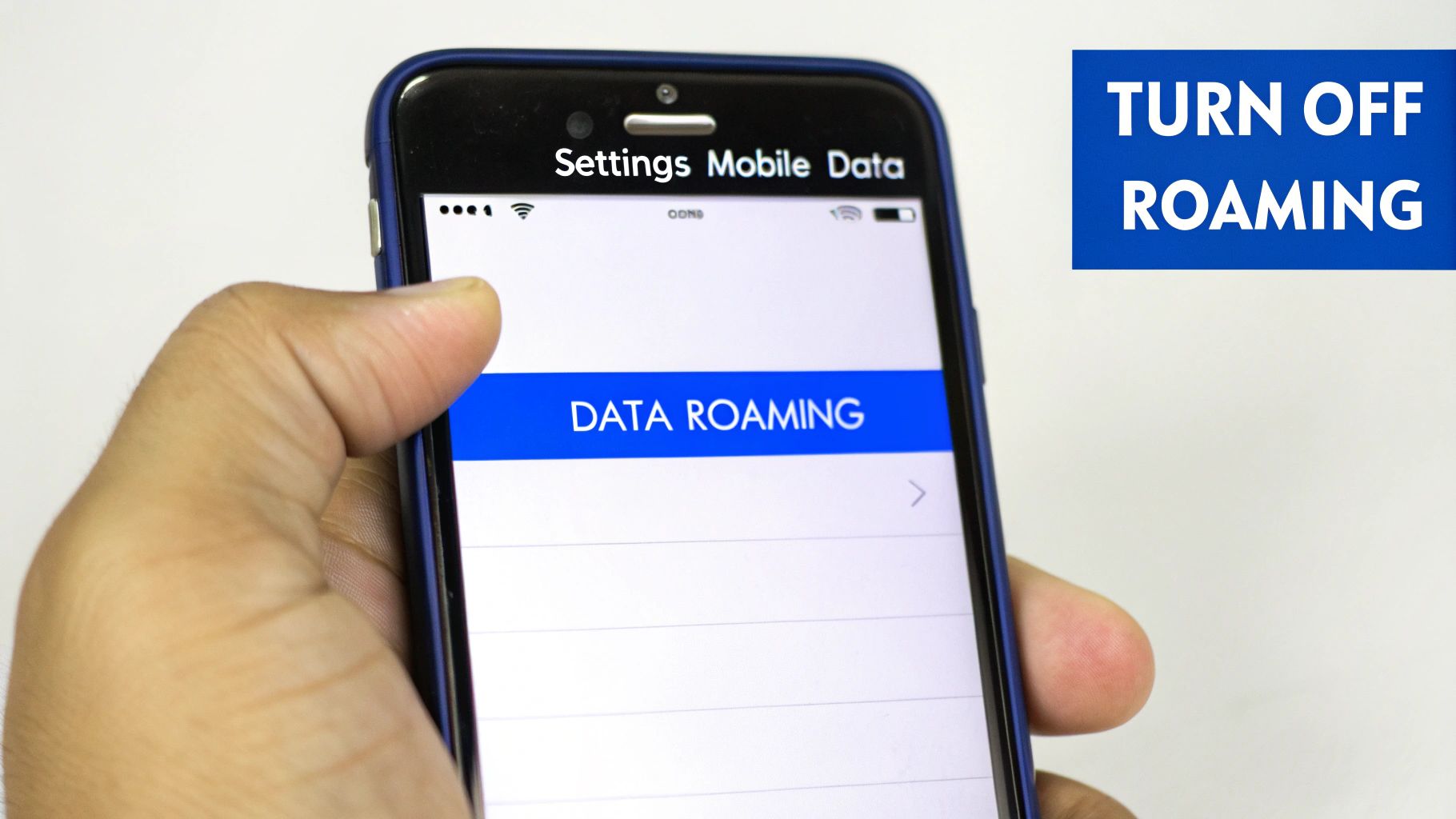
Diving into your iPhone’s settings might seem like a maze, but switching off data roaming is one of the quickest, most important things you can do before travelling. Honestly, it takes less than a minute and can save you a nasty bill shock when you get back home.
The key toggle is just a few taps away. Open your Settings app, head into Mobile Data (you might see it as Cellular), and then tap on Mobile Data Options.
Inside, you’ll find the Data Roaming switch. A simple tap will flick it from green to grey, which instantly stops your phone from racking up charges on foreign networks.
For most travelers, seeing that switch in the grey (off) position is the final peace-of-mind check before setting off on a trip.
If you have a newer iPhone, you’ve probably got dual SIM or eSIM capabilities. This is a game-changer for travelers because you can use a travel eSIM for affordable data and keep your home number active for calls. But you have to set it up correctly.
With two lines active, you need to manage each one individually. Here’s a practical way to do it:
The final, crucial step is to go back to the main Mobile Data menu and set your Mobile Data source to use the travel eSIM. This tells your iPhone to use the affordable travel plan for all your internet needs, shielding your home plan from any data use whatsoever.
If you need a bit more guidance, this simple walkthrough explains how to activate an eSIM on your iPhone.
This simple setup gives you the best of both worlds. You’re still reachable on your normal number if needed, but all your mapping, browsing, and social media posting runs through a cost-effective travel data plan. It’s the smart way to stay connected without the fear of a massive bill.
One of the great things about Android is the sheer variety, but it does mean the steps to turn off data roaming can differ slightly from one phone to the next. Whether you’re using a Samsung, a Google Pixel, or another brand, the setting is always there—it just might be tucked away in a slightly different spot.
Don’t worry, though; the general path is almost always the same.
You’ll want to start by opening your main Settings app. From there, look for a menu that sounds like Connections or Network & Internet. This is your command centre for everything related to mobile data and Wi-Fi.
Once you’re in, tap on Mobile Networks or a similar option like SIMs. You should see the all-important Data Roaming toggle switch. A quick tap will turn it off, instantly preventing your phone from racking up unexpected charges when you’re abroad.
Most new Android phones come with dual SIM or eSIM capabilities, which is a game-changer for travelers. You can pop in a local or travel eSIM for affordable data while keeping your home number active for calls and texts. But this fantastic flexibility means you need to be a little more careful to avoid accidental roaming on your primary line.
You need to tell your phone exactly which SIM to use for data.
Here’s the best way to manage your two lines and stay in control:
This two-step check is your financial safety net. By explicitly setting your data source and disabling roaming on your home SIM, you get complete peace of mind. Go ahead and browse, use maps, and post your travel photos without a single worry about the bill waiting for you back home.
Getting this right is a key part of learning how to use your phone abroad without any of the usual stress. With a travel eSIM handling all the data, your primary SIM is safely ring-fenced from those eye-watering roaming fees.
So, you’ve figured out how to switch off data roaming on your phone. Great. But now what? How do you actually stay connected without racking up a massive bill?
For a long time, the go-to options were pretty clunky. You’d either spend half your trip hunting for sketchy public Wi-Fi or fumbling with a tiny new SIM card you just bought from a kiosk at the airport. They get the job done, but it’s hardly a smooth or secure experience.
Thankfully, there’s a much more elegant solution that sidesteps the whole roaming issue: travel eSIMs.
An eSIM, or embedded SIM, is basically a digital SIM card that’s already built into your phone. It lets you download a data plan for your destination without ever needing to physically swap out your SIM. You can land in Tokyo, Paris, or pretty much anywhere else and get online with affordable, fast data in minutes.
The whole process is incredibly straightforward. You can browse and buy a data plan for your trip before you even leave home. With a service like TapSim, you can activate your data instantly. No surprise fees, no complicated contracts—just simple, prepaid data that puts you in control.
This approach has some serious advantages over the old-school methods:
For travelers everywhere, finding a smarter solution is becoming essential. The global data roaming market is ballooning, expected to grow from $89.43 billion in 2024 to $95.43 billion in 2025. Evolving carrier policies mean roaming charges can change unexpectedly, making it harder to predict costs. You can discover more insights about the data roaming market and see just how costs are shifting for travelers.
Using a travel eSIM isn’t just a neat trick for convenience; it’s a practical defence against soaring roaming charges. It gives you back control, offering a fair and transparent way to get online wherever your journey takes you.
You’ve packed your bags and your passport is ready. Before you head to the airport, it’s worth taking just two minutes for a final connectivity check on your phone. Getting this sorted now means you can land, switch on your phone, and start your holiday without worrying about surprise data charges.
First, get to know the little ‘R‘ symbol. If you see this pop up next to your signal bars after you land, it means you’re roaming on a partner network. If you haven’t bought a specific travel data plan, that ‘R‘ is your cue to dive back into your settings and make sure roaming is definitely off.
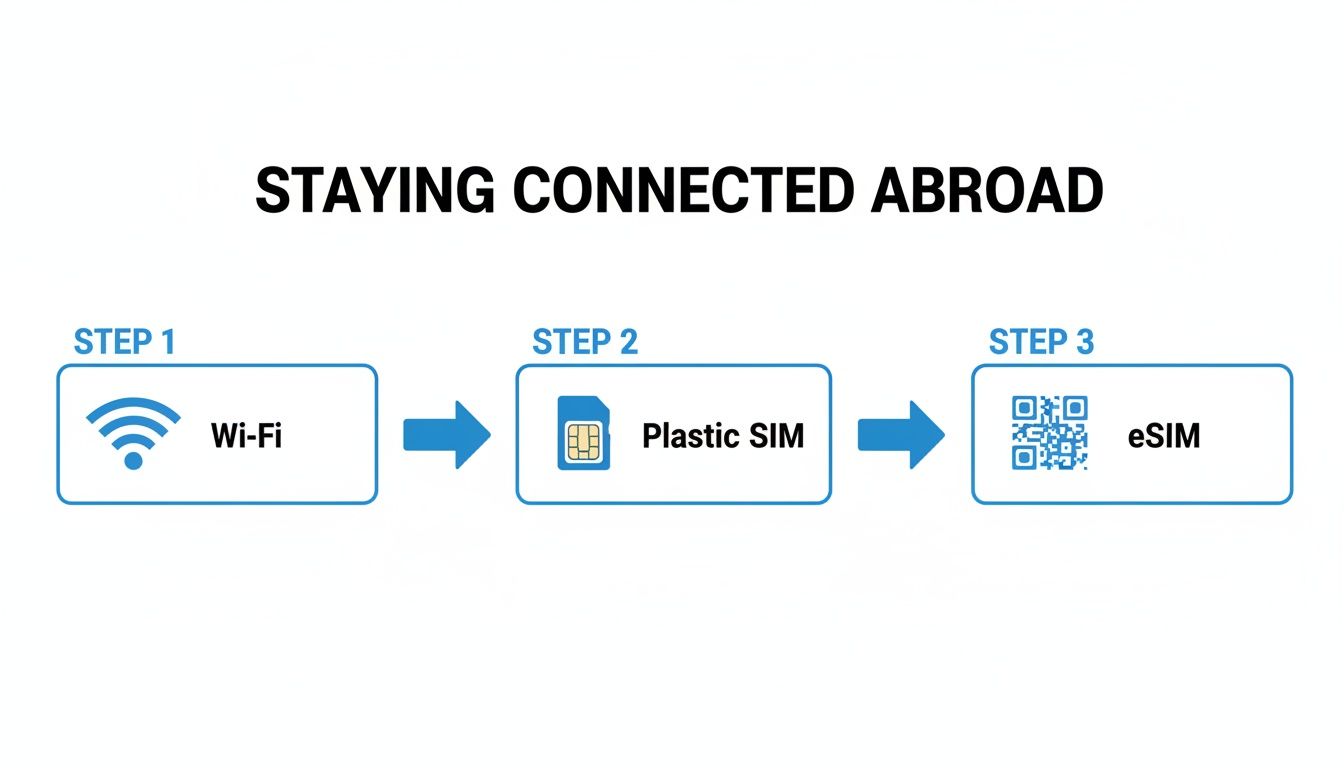
These days, staying connected abroad is easier than ever, moving from hunting for public Wi-Fi to the seamless control you get with a travel eSIM.
Turning off roaming is the biggest step, but a couple of other small tweaks can save a surprising amount of data and even stretch your battery life. I always do these before a long flight.
To make it even easier, here’s a quick table to run through just before you switch to flight mode. It’s the final check to ensure everything is set correctly.
| Setting to Check | Where to Find It on iPhone | Where to Find It on Android |
|---|---|---|
| Data Roaming | Settings > Mobile Data > Mobile Data Options | Settings > Network & internet > SIMs |
| Travel eSIM/SIM | Settings > Mobile Data > SIMs (Ensure primary is off) | Settings > Network & internet > SIMs (Toggle correct one) |
| Background Refresh | Settings > General > Background App Refresh | Settings > Apps > [Select App] > Mobile data & Wi‑Fi |
Running through this list takes less than a minute but gives you complete peace of mind.
Think of this checklist as the digital equivalent of checking you’ve packed your passport. It’s a small step that prevents big headaches later, ensuring a smoother, more relaxed start to your adventure.
Even when you think you’ve got it all sorted, a few questions always seem to pop up right before a trip. Let’s tackle some of the most common ones so you can head off with total peace of mind.
Yes, you absolutely will. Turning off data roaming purely stops your phone from using the internet over a foreign mobile network. Your normal ability to make phone calls and send traditional SMS texts isn’t affected.
Just be careful, though. Your home provider will probably charge you a premium for those calls and texts. Remember, apps that need the internet, like WhatsApp or iMessage, will only work when you’re on Wi-Fi or have a separate travel data plan running.
Forgetting to switch off data roaming is an easy mistake that can get expensive, fast. As soon as you land, your phone can connect to a local network and start pulling data for background updates, app notifications, and emails. Those charges can rack up before you’ve even left the airport.
Roaming charges can be unpredictable and vary wildly by destination and carrier. Some travelers have faced bills in the hundreds or even thousands of dollars after just a short trip. It’s a bill you really don’t want waiting for you at home.
You certainly can, and for frequent travelers, it’s the best way to do it. If you have a dual-SIM phone, you can keep your main SIM active for calls and texts from home while using a travel eSIM for affordable local data.
It’s a straightforward setup. Just dive into your phone’s settings and tell it to use the eSIM for all mobile data. At the same time, make sure data roaming is switched off for your primary SIM. It’s the perfect combination: you get affordable data without missing any important calls or messages on your usual number.
Ready to travel without the roaming stress? With TapSim, travelers can activate affordable data instantly, right from their phone.