eSIM for Business Travel: What to Know
Learn how esim for business travel cuts roaming costs, speeds arrival setup, and keeps teams connected with clear data limits and fewer surprises.
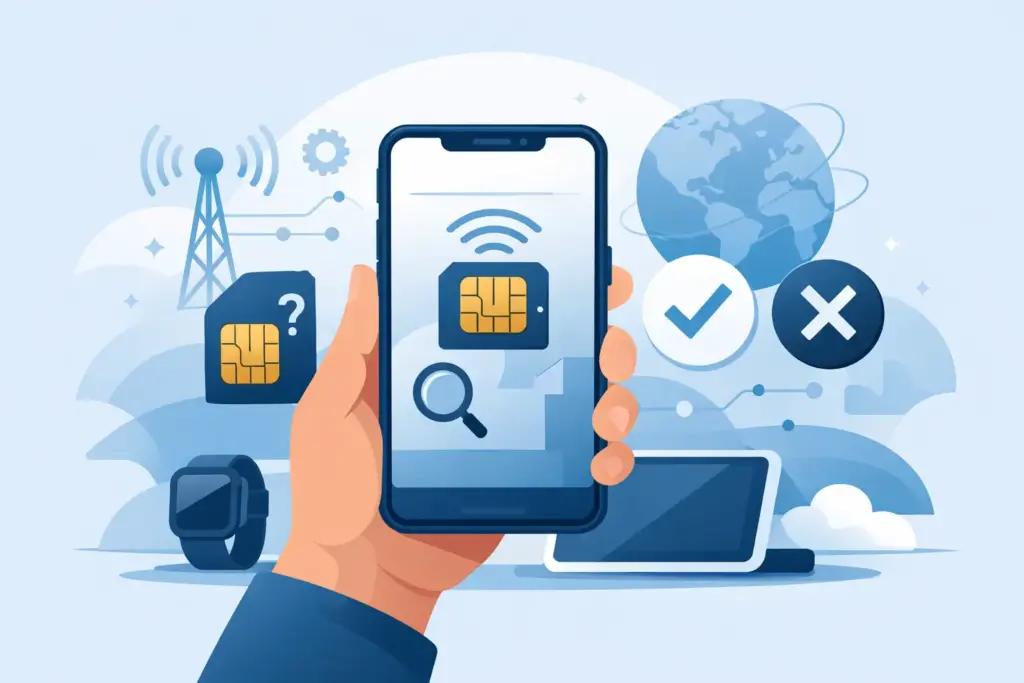
You do not want to figure out eSIM compatibility after landing. That is how trips start with airport Wi-Fi, carrier confusion, and way too much time spent in settings menus. If you are wondering how to check eSIM compatibility, the good news is that it usually takes just a few minutes if you check the right things in the right order.
The key is this: eSIM support is not just about having a newer phone. Your device model, carrier lock status, country of purchase, and software version can all affect whether an eSIM will actually work. A phone can support eSIM in theory and still fail in practice if one of those pieces is off.
Start with the phone itself. Most recent flagship phones support eSIM, but not every version does. That detail matters more than people expect. A US model may support eSIM while the same phone line sold in another market has different hardware or carrier restrictions.
First, identify your exact device model, not just the brand and series. Saying you have an iPhone 13 or a Samsung Galaxy S23 is a good start, but the full model version gives you a cleaner answer. Some dual-SIM models support one physical SIM and one eSIM. Others support multiple eSIM profiles but only one active at a time. If you travel often, that difference matters.
After that, check whether the phone has an eSIM menu. On iPhone, go to Settings, then Cellular or Mobile Data, and look for an option like Add eSIM or Add Cellular Plan. On Android, the wording varies by brand, but you are usually looking under Settings, then Network and Internet, Connections, or SIM Manager. If there is no eSIM option at all, that is your first red flag.
Still, the menu alone is not enough. Some phones show the option, but your carrier or region may limit activation. That is why the next step is just as important.
A locked phone can block eSIM use with another provider, even if the device is technically eSIM-ready. This is one of the most common reasons travelers run into setup issues.
On iPhone, you can usually find this under Settings, General, About, then Carrier Lock. If it says No SIM restrictions, you are in good shape. If it says the device is locked, you may not be able to install or activate a travel eSIM until that lock is removed.
On Android, there is no single universal path because every manufacturer handles it a little differently. Sometimes the lock status appears under SIM settings. Sometimes you need to confirm it through your mobile carrier. If the phone was bought on a payment plan, bundled with a postpaid contract, or sold at a discount through a carrier, assume nothing and verify it directly.
This is where people get tripped up. They check whether the phone supports eSIM, but they do not check whether it is unlocked. Both have to be true.
Not all phones are built the same across markets. This is especially true for iPhones and some Samsung and Pixel devices.
For example, certain phones sold in mainland China do not support eSIM at all, even when the same phone family sold in the US does. Some models sold in Hong Kong or other regions may also differ. That means you cannot rely on a generic device list if your phone was purchased abroad or imported.
If you bought your phone secondhand, this step matters even more. The seller may advertise it as eSIM compatible because the model line supports it, but your exact unit may not. Check the model number in your settings and compare that version carefully with the manufacturer specifications.
Software also plays a part. If your phone is running an outdated operating system, eSIM setup can fail or certain features may not appear. Before travel, update your device while you still have stable Wi-Fi and time to troubleshoot.
Apple makes this fairly simple, which is one reason eSIM adoption is so common among travelers using iPhones.
Go to Settings, then Cellular or Mobile Data. If you see Add eSIM, that is a good sign. Then go to Settings, General, About and check Carrier Lock. You want to see No SIM restrictions. While you are there, confirm your iOS version is current.
There is one more thing worth checking. Some iPhones can store multiple eSIMs but only use a limited number of lines at once. For most travelers, that is fine. But if you plan to keep your home line active for calls or texts while using travel data on eSIM, make sure your device supports the setup you want.
US iPhone models have shifted heavily toward eSIM, especially newer versions with no physical SIM tray. That makes travel easier in many cases, but it also means you need to be more certain about compatibility before departure.
Android is more varied. The support is there, but the path is less consistent.
On Samsung, start in Settings, then Connections, then SIM Manager. If you see Add eSIM, your phone likely supports it. On Google Pixel, check Settings, then Network and Internet, then SIMs. Other brands may place it under Mobile Network or Cellular Network.
Do not stop at the menu. Android devices can vary by carrier version, firmware, and region. A Galaxy bought factory unlocked may work perfectly, while the same series bought through a carrier might have limitations. Pixels are usually traveler-friendly, but older generations and certain carrier builds can still behave differently.
If you use a lesser-known Android brand, be extra careful. Some phones support eSIM only in specific markets. Others support it only on selected models, not the full product line.
If you want the short version, here is what to confirm before buying any travel eSIM:
That last point matters because compatibility is not only about the phone. It is also about network support in the places you are going.
eSIM plans for travel are often data-only. That is great for maps, messaging apps, rideshare, tethering, and work on the go, but it may not replace your primary number for standard voice calls or SMS. If you need both, plan for a dual-SIM setup where your home SIM handles your number and your eSIM handles data.
Hotspot support is another detail worth checking in advance. Some travel eSIMs allow it, some limit it, and some slow speeds after a fair-use threshold. Honest providers tell you this upfront. If a plan promises unlimited everything with no real details, read carefully. Vague terms usually become very clear once you are abroad and your speed drops.
Activation timing also depends on the provider. Some eSIMs install immediately but do not activate until you connect in the destination country. Others start the plan as soon as installation finishes. That distinction matters if you are trying to avoid wasting days before departure.
This is why buying from a provider that explains speed caps, fair-use rules, hotspot access, and activation timing clearly is not a small bonus. It is the difference between a simple setup and a support headache.
If compatibility still feels fuzzy, do not guess. Take two extra minutes and verify your exact phone model and lock status before purchase. That small check is cheaper than buying a plan you cannot use.
If you are buying for a parent, partner, or employee, double-check the device yourself. People often say, “It is a newer phone, so it should work.” Sometimes it does. Sometimes it is carrier locked, region-limited, or missing the right menu entirely.
A good travel eSIM experience starts before the trip. Buy early, install early, and test what you can while you still have time to fix anything. That is the practical advantage of digital delivery. With TapSim, for example, travelers can receive their QR code right away and set things up before departure instead of gambling on airport Wi-Fi.
The smart move is simple: check the phone, check the lock, check the model, then travel with one less thing to worry about.